Installing Postcode Lookup for Microsoft Dynamics 365 Business Central
This guide walks you through installing and configuring the Ideal Postcodes address validation extension for Microsoft Dynamics 365 Business Central. The extension enables UK postcode lookup on any card page with an Address FastTab.
Overview
What this integration provides:
- Accurate UK address data sourced from national address databases
- Enhanced user experience with faster address entry
- Correct address formatting across all standard address fields
- Improved data quality across all address collection points
Demo
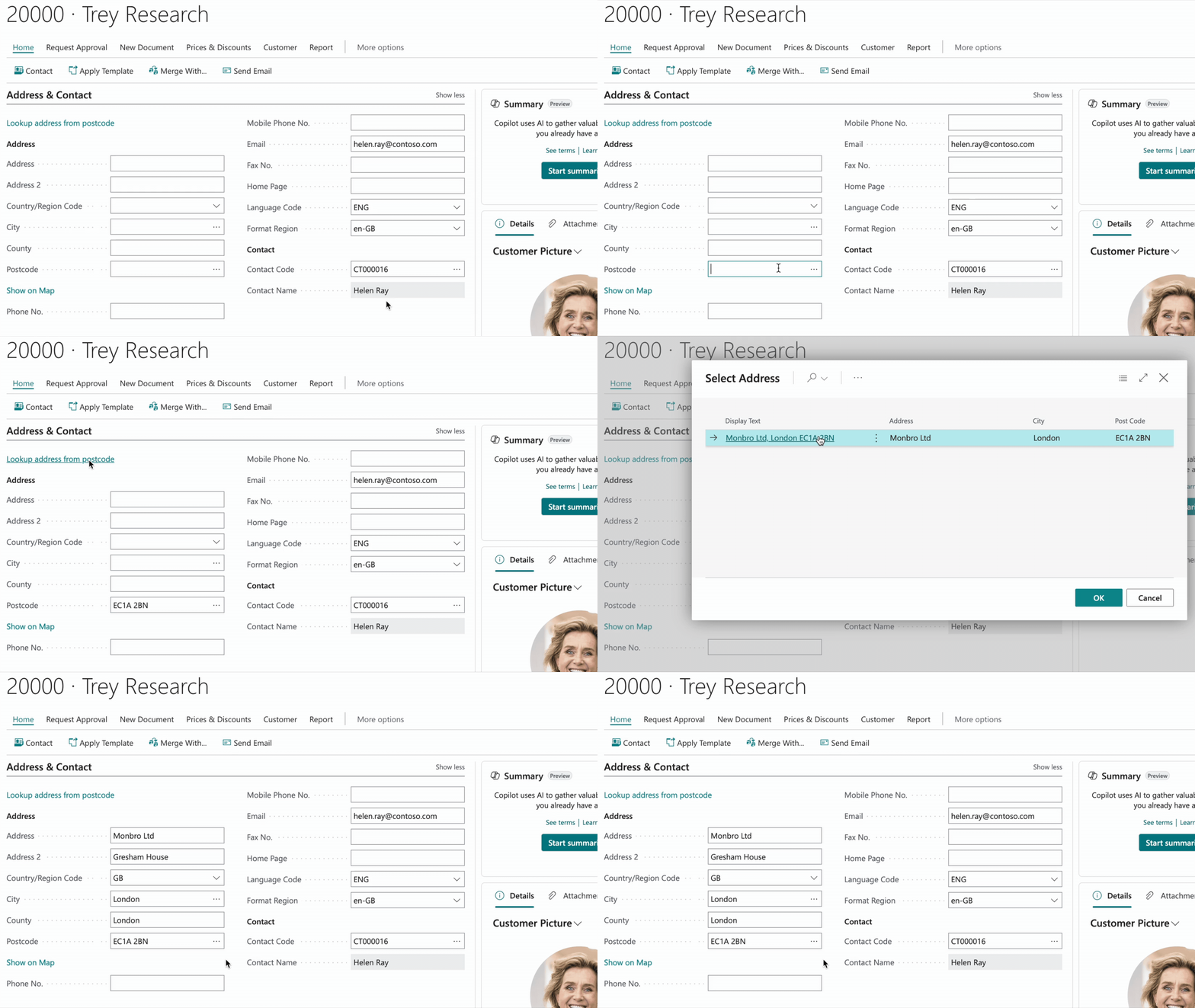
If you prefer to watch a video, here’s a tutorial for you.
1. Sign up for a Free Trial and Get Your API Key
Before installing the extension, you'll need an Ideal Postcodes API Key.
Steps:
- Sign up for a free account at ideal-postcodes.co.uk/sign-up
- Navigate to the KEYS section in your account
- Copy your API Key - you'll need this to complete the setup in Business Central. It's a string of characters that begins with the letters
ak_
💡 All new accounts include 50 free test credits - no payment required.
2. Set Up the Ideal Postcodes Extension in Business Central
Once you have your API Key, configure Business Central to use Ideal Postcodes as the postcode service provider.
Steps:
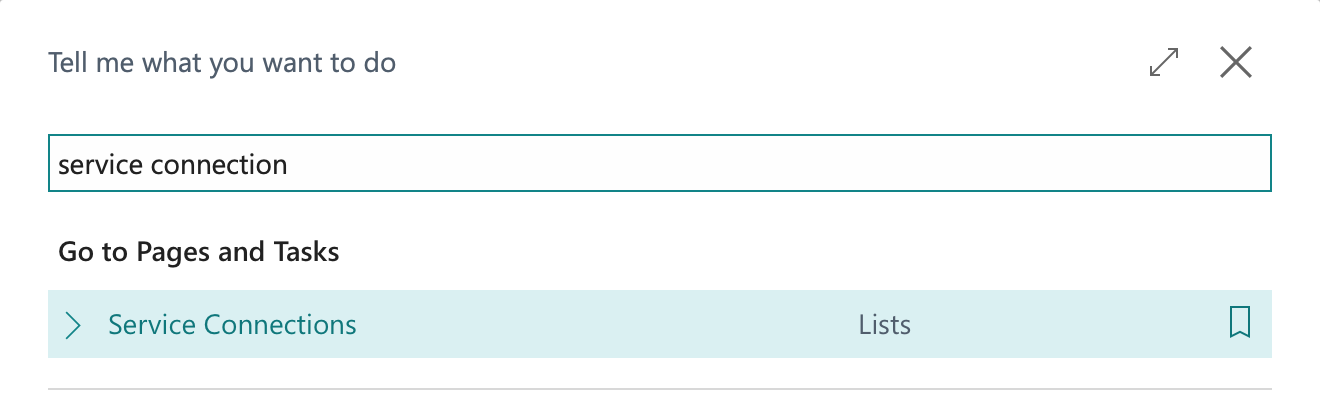
- Select Search (
Alt+Q) in the upper-right corner of your Business Central dashboard - Enter Service Connections and choose the related link
- On the Service Connections page, choose Postcode Service
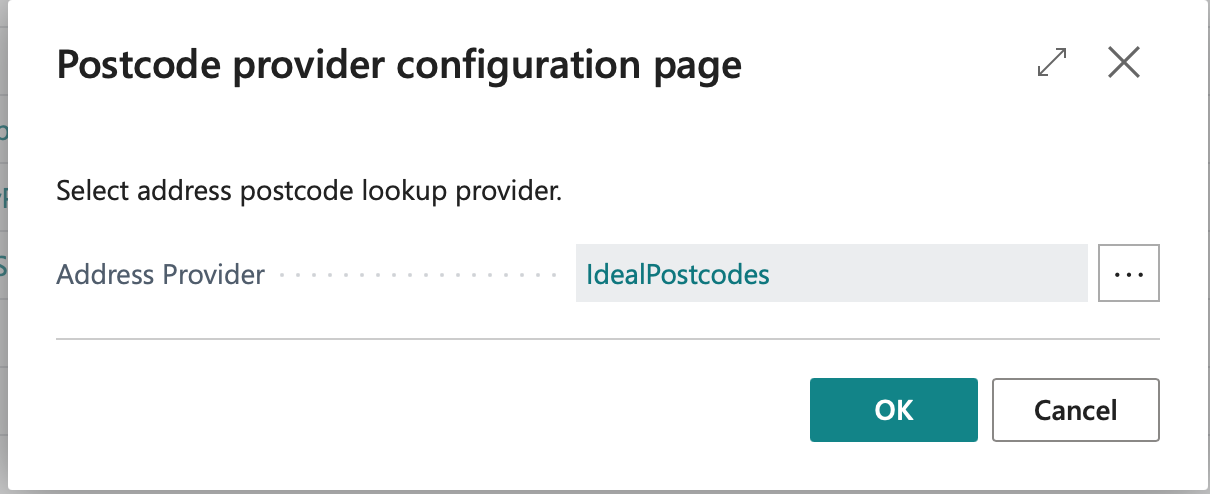
- On the Postcode provider configuration page, choose Disabled
- On the Postal code service selection page, choose IdealPostcodes
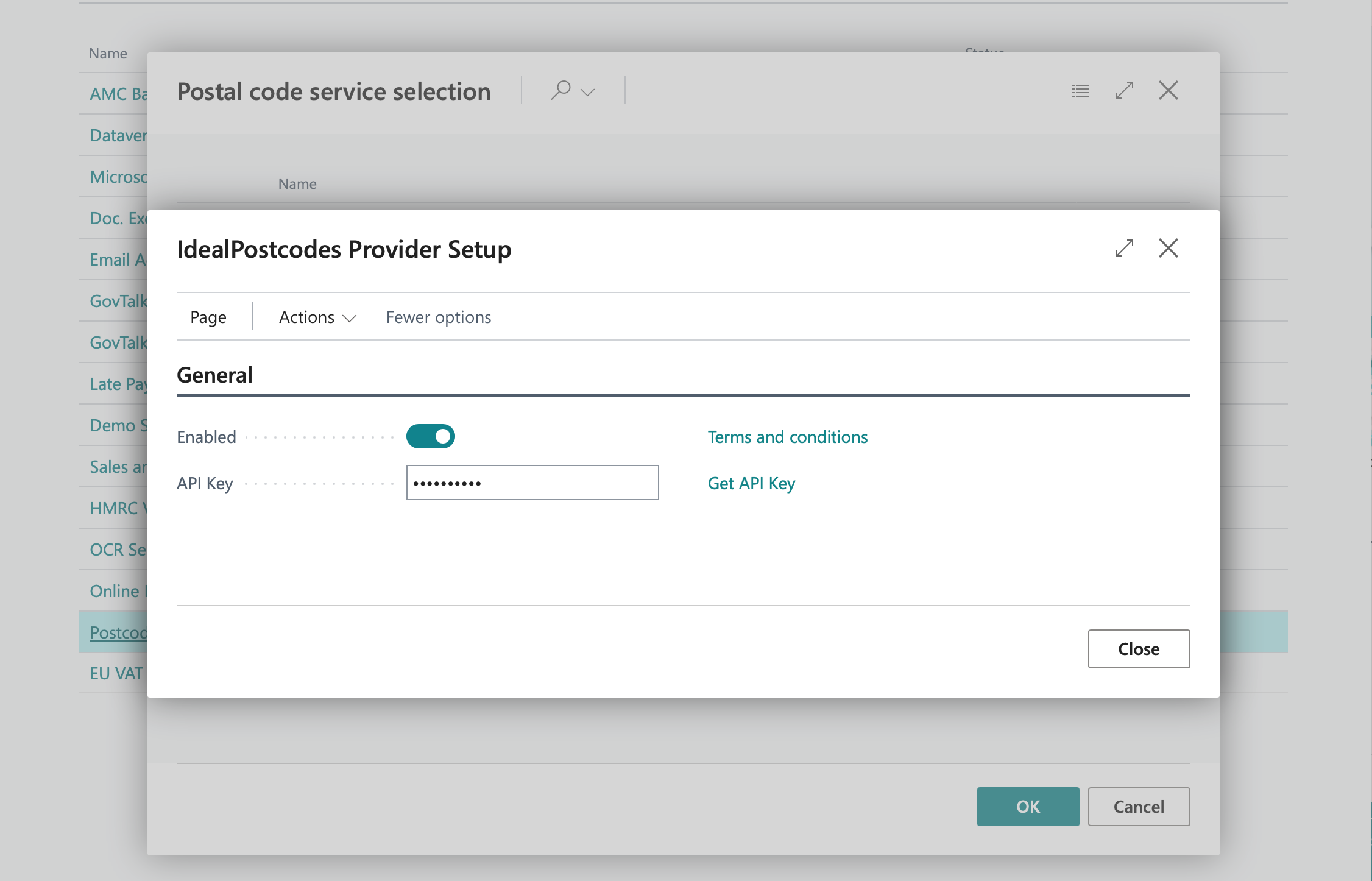
- On the Ideal Postcodes Provider Setup page:
- Enter the API Key from your Ideal Postcodes account
- Tick the Enabled checkbox
- Choose OK
- Test the API Key and connection by choosing Actions, then Test Connection.
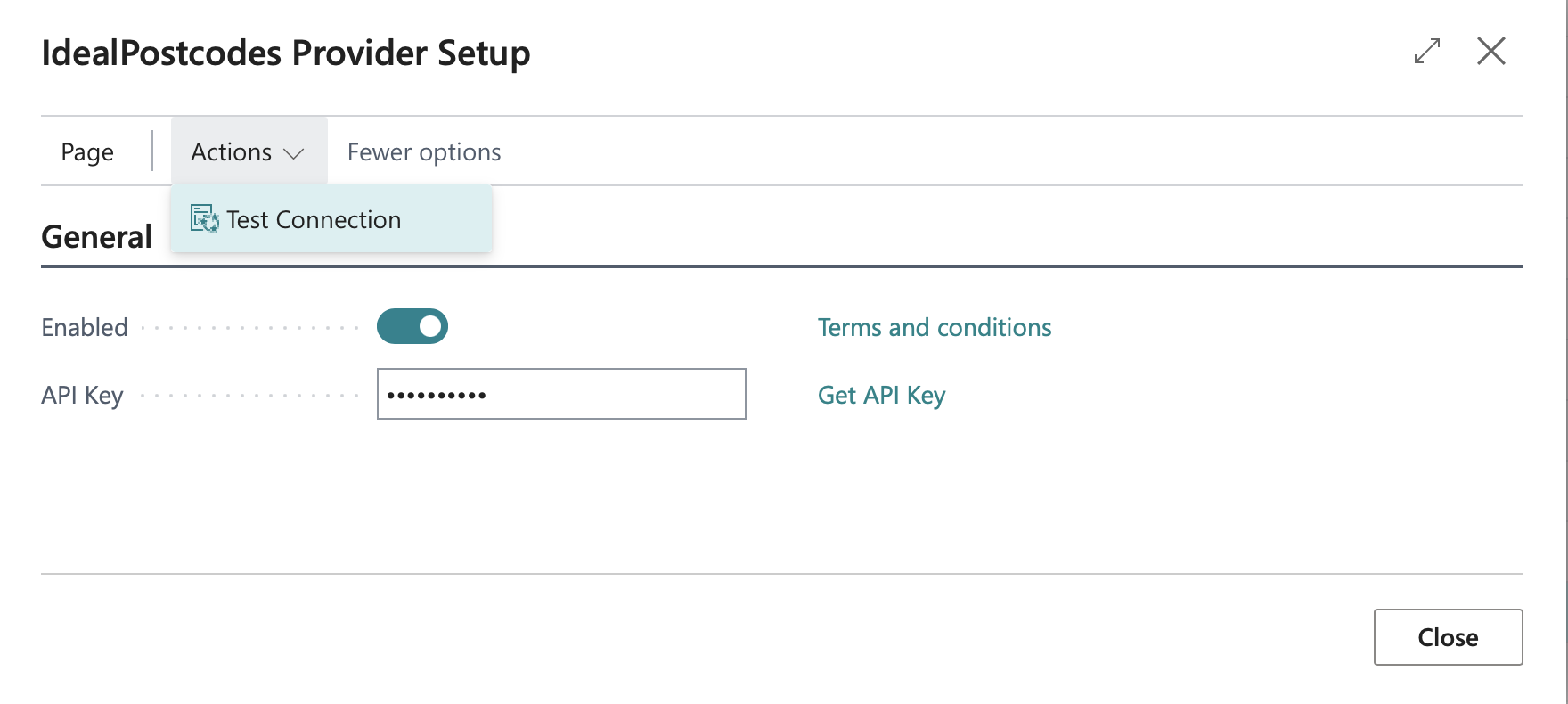
You should see Connection test was successful.
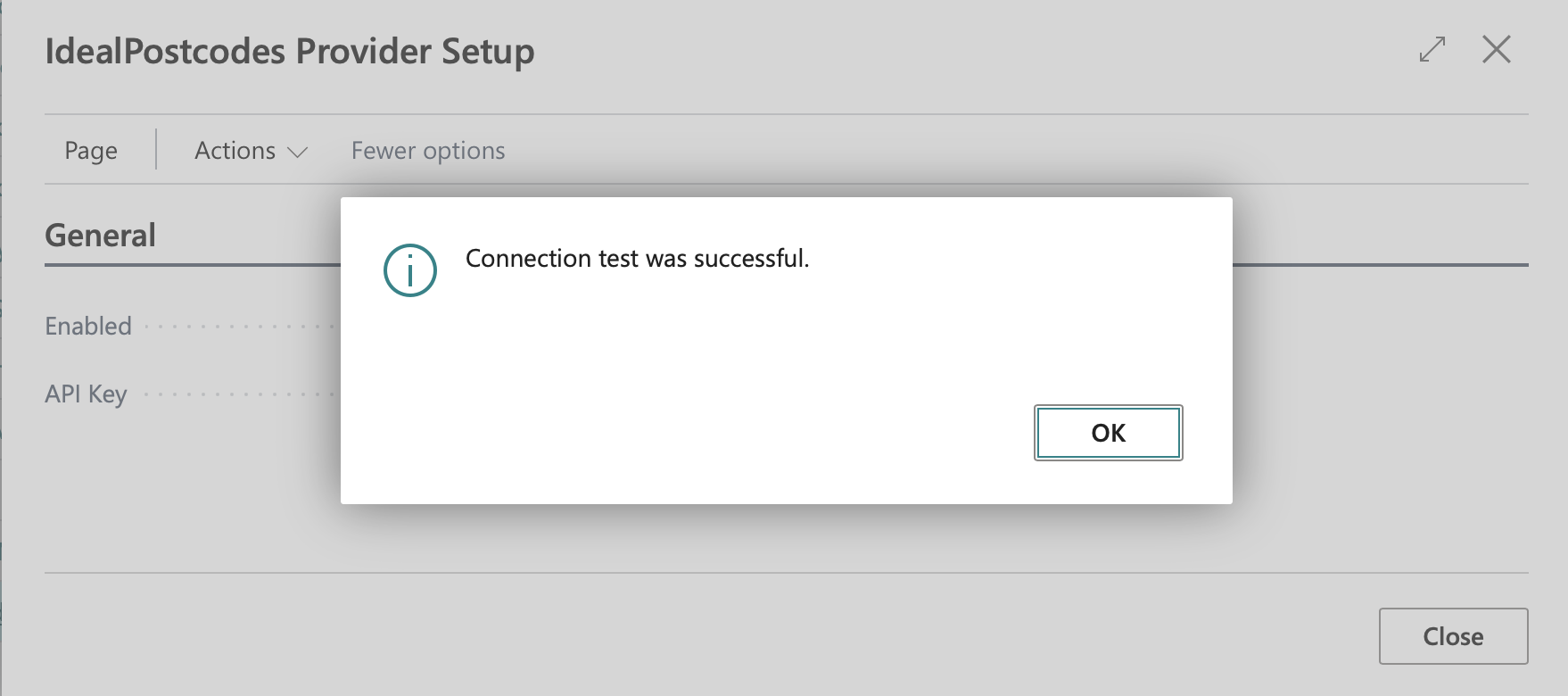
If you see Connection test failed. Received response 0, go to Extension Management and enable Allow HttpClient Requests for the Ideal Postcodes extension.
- Back on the Service Connections page, verify that the Address Provider field contains Ideal Postcodes. If it does, the service is ready to use.
3. Test the Postcode Lookup Extension
To verify the extension is working:
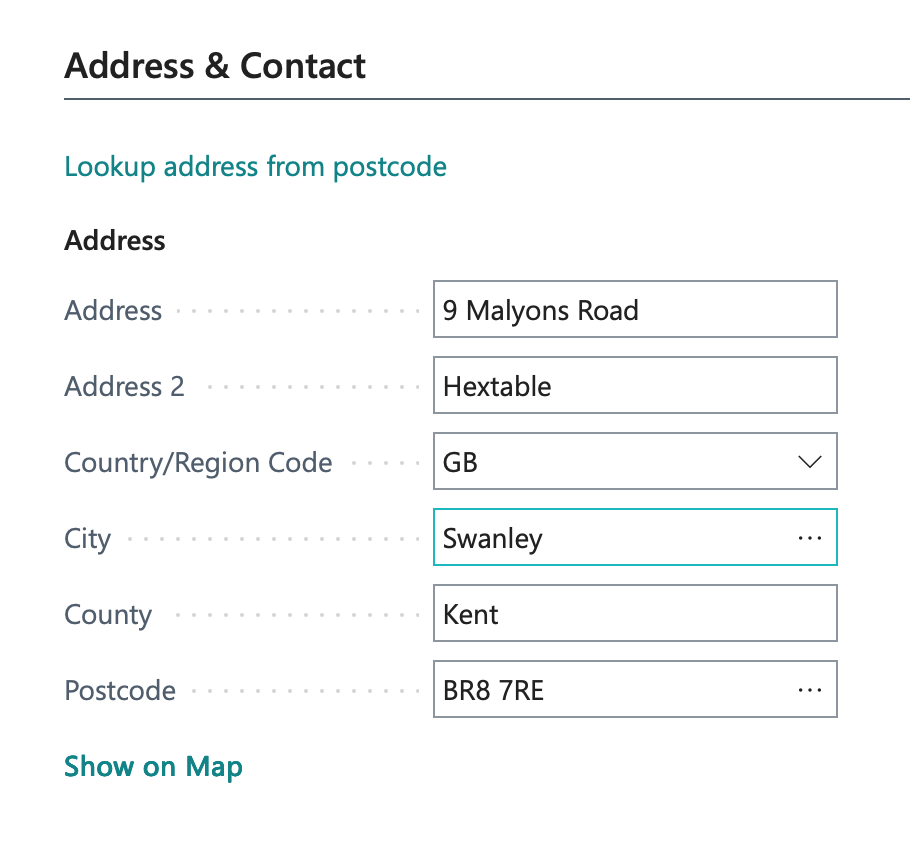
- Open any card page with an Address FastTab (e.g. a Customer, Vendor, or Contact card)
- Enter a UK postcode in the Post Code field
- Choose the Look up address from postcode action
- On the Address Selection page, choose the correct address
The address-related fields on the card page will fill in with the data from the chosen address.
Need help? Contact our support team via live chat on our website or email support@ideal-postcodes.co.uk.