Installing Address Cleanse for Microsoft Excel
Cleanse, validate and enrich addresses directly inside a workbook. The add-in calls the Cleanse API and writes 31 columns per row - status, formatted address, confidence and fit, per-element match levels, geocodes, UPRN/UDPRN, and country - as plain static values alongside your input.
Overview
What this integration provides:
- A Cleanse button on the Home ribbon that opens a task pane
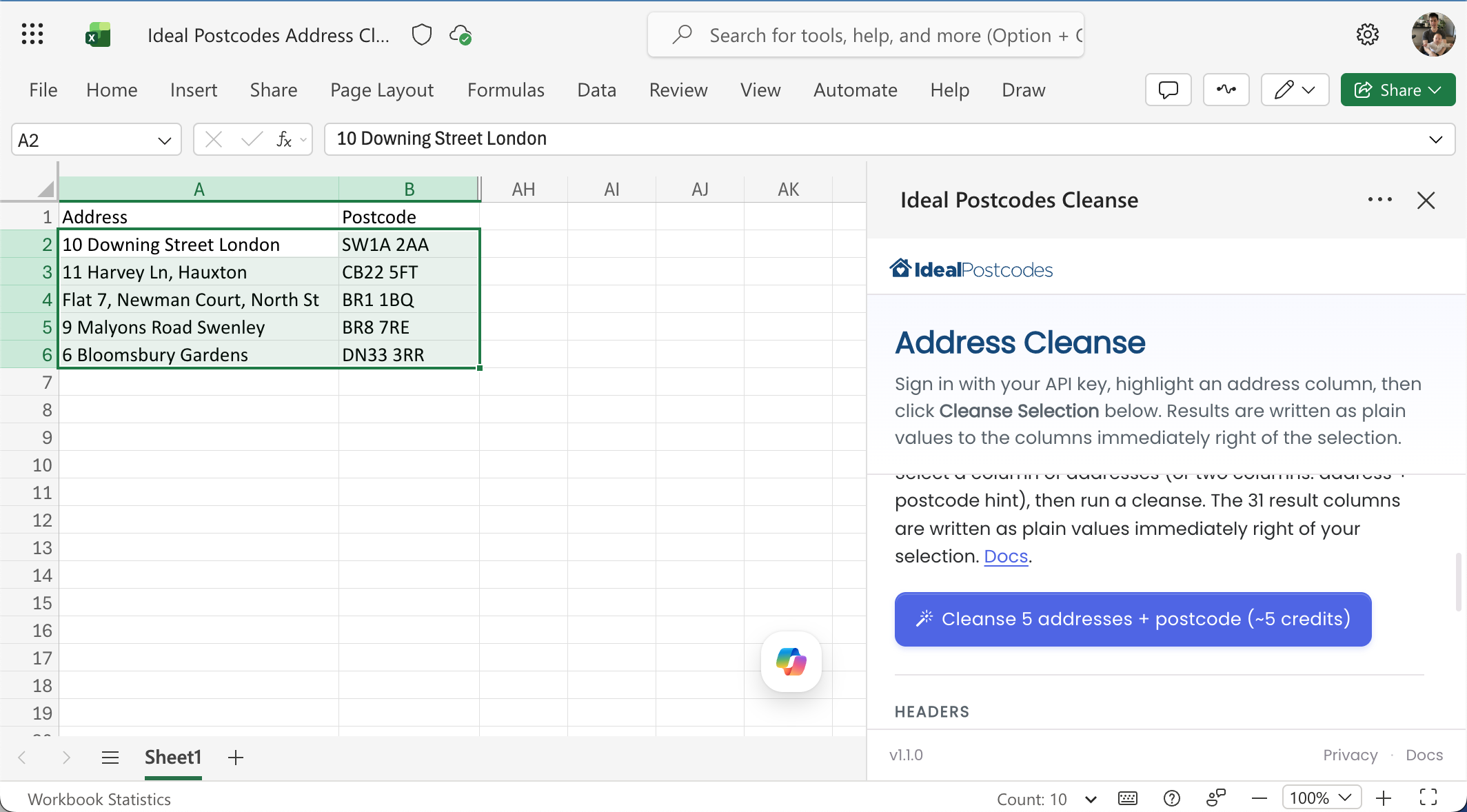
- A Cleanse Selection action in the pane - runs cleanse over your selected address column and writes 31 columns of structured results immediately to the right
- A Write Headers action - drops the 31 column labels starting at the active cell
- Results are written as plain static values, so the workbook can be saved, shared and reopened by anyone - no add-in or API Key required to view the cleansed data
Works with:
- Excel for the Web (excel.office.com)
- Excel for Windows (Microsoft 365)
- Excel for Mac (Microsoft 365)
The add-in is currently installed by sideloading the manifest (instructions below). A Microsoft AppSource listing is in progress - once published, one-click install from inside Excel will be available. Behaviour is identical either way.
Screenshots
Cleanse Selection in action
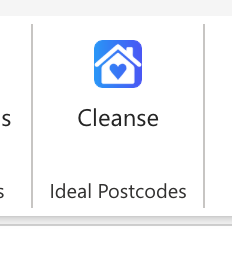
Ribbon button
1. Sign up and get your API Key
You need an Ideal Postcodes API Key before the add-in can return results.
- Sign up for a free account at ideal-postcodes.co.uk
- Open the Keys section in your dashboard
- Copy your API Key - it begins with
ak_(live) orak_test(test)
💡 All new accounts include free test credits - no payment required to try the add-in.
2. Install the add-in (sideload the manifest)
Until the AppSource listing is published, the add-in is installed by uploading a manifest file to Excel. The manifest is hosted at:
https://excel.ideal-postcodes.co.uk/manifest.xml
You can either upload the file directly, or download it and upload it from disk.
Excel for the Web (recommended)
The simplest path. No download required.
-
Download the manifest from excel.ideal-postcodes.co.uk/manifest.xml (right-click → Save link as…)
-
Open excel.office.com and create or open a workbook
-
From the ribbon, choose Add-ins
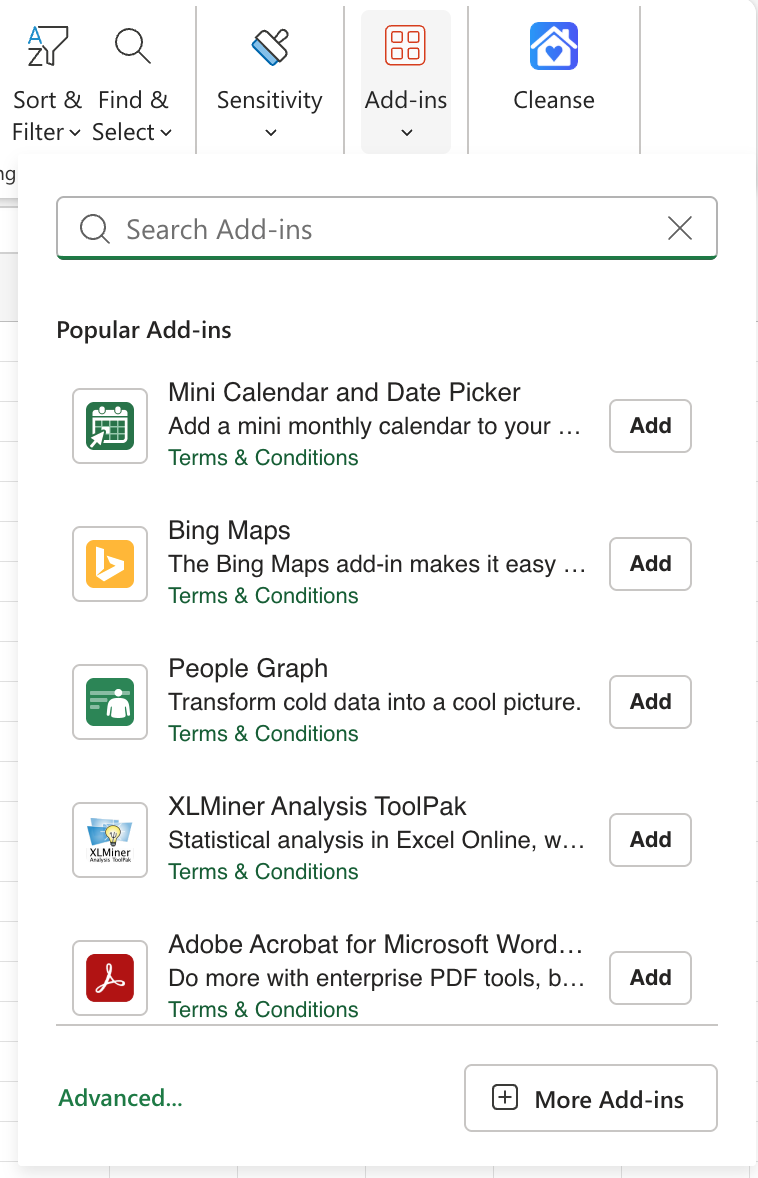
-
In the dialog, switch to My Add-ins, then click Upload My Add-in
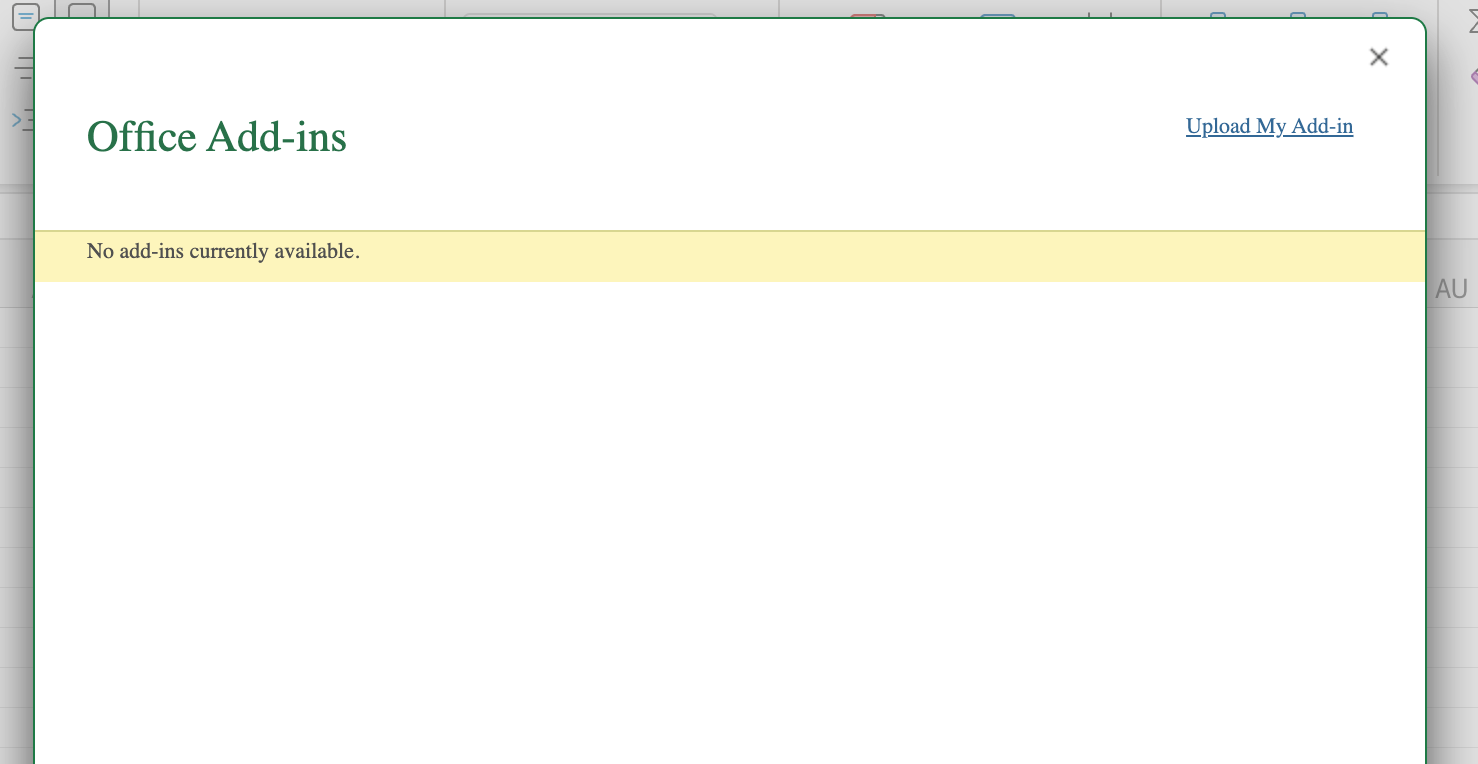
-
Browse to the
manifest.xmlfile you just saved and click Upload -
The Cleanse button appears on the Home ribbon, inside the Ideal Postcodes group
Excel for Windows and Excel for Mac currently require sideloading the manifest - treat the steps below as a testing route while we work towards an AppSource listing. Once published, one-click install from inside Excel will be available on both platforms. Contact us to be notified when the AppSource release is live.
Excel for Windows
- Save the manifest from excel.ideal-postcodes.co.uk/manifest.xml to a folder on your machine - for example
C:\OfficeAddins\ - Open File Explorer and navigate to that folder
- Right-click the folder → Properties → Sharing → Share and share it with yourself (Excel for Windows requires sideloaded manifests to live in a shared folder - even sharing with
Everyoneon the same machine works). Copy the resulting\\COMPUTERNAME\OfficeAddinspath. - In Excel, go to File → Options → Trust Center → Trust Center Settings → Trusted Add-in Catalogs
- Paste the share path into Catalog URL, tick Show in Menu, click Add catalog, then OK
- Restart Excel
- Open Insert → Add-ins → My Add-ins → SHARED FOLDER and choose Ideal Postcodes Cleanse
Full Microsoft walkthrough: Sideload an Office Add-in on Windows.
Excel for Mac
-
Save the manifest from excel.ideal-postcodes.co.uk/manifest.xml
-
In Finder press ⇧⌘G and paste:
~/Library/Containers/com.microsoft.Excel/Data/Documents/wefIf the
weffolder doesn't exist, create it. -
Copy
manifest.xmlinto that folder -
Restart Excel
-
Open a workbook and choose Insert → Add-ins → My Add-ins → Developer Add-ins → Ideal Postcodes Cleanse
Full Microsoft walkthrough: Sideload an Office Add-in on Mac.
3. Sign in
-
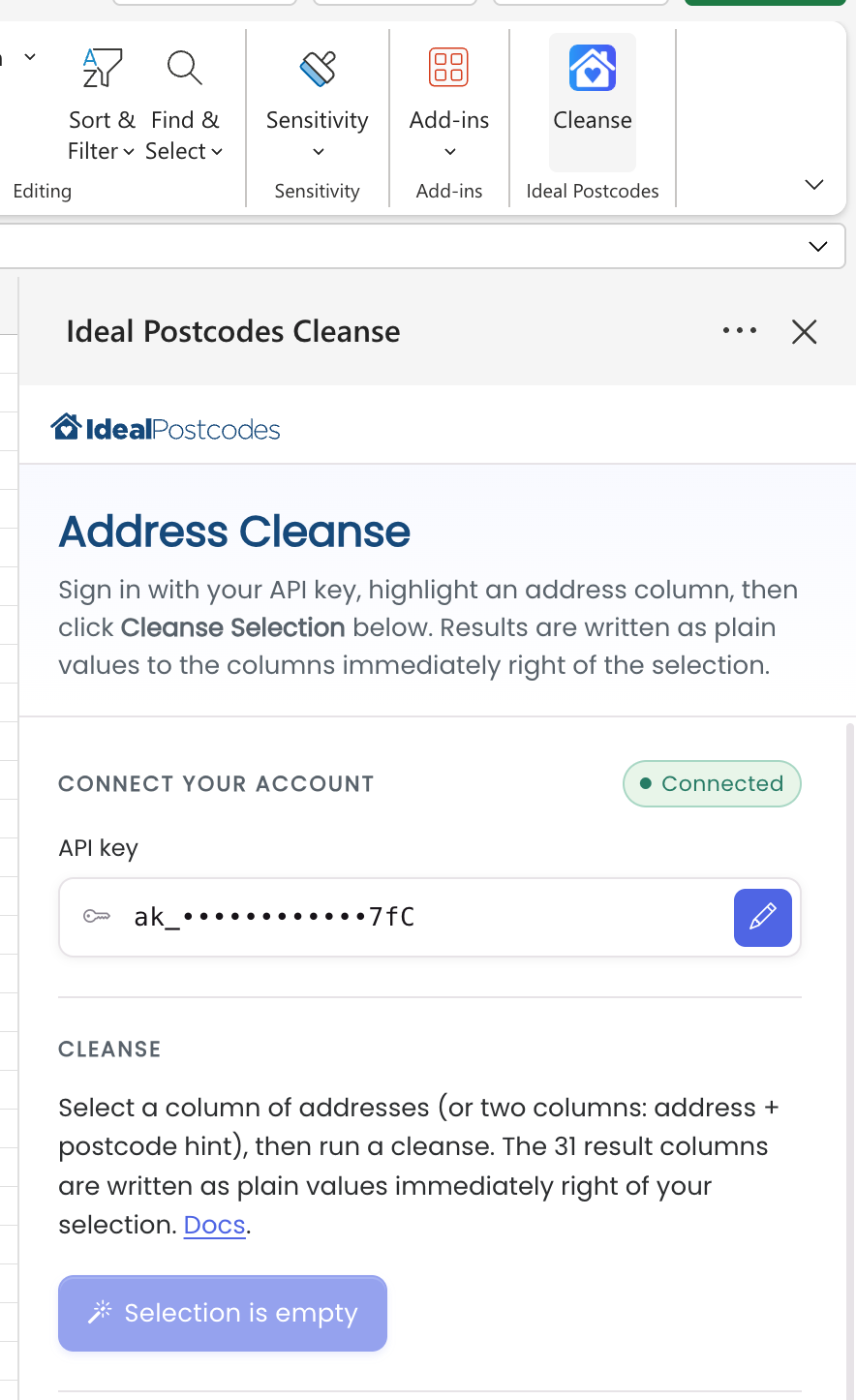
Click the Cleanse button on the Home ribbon - the task pane opens on the right
-
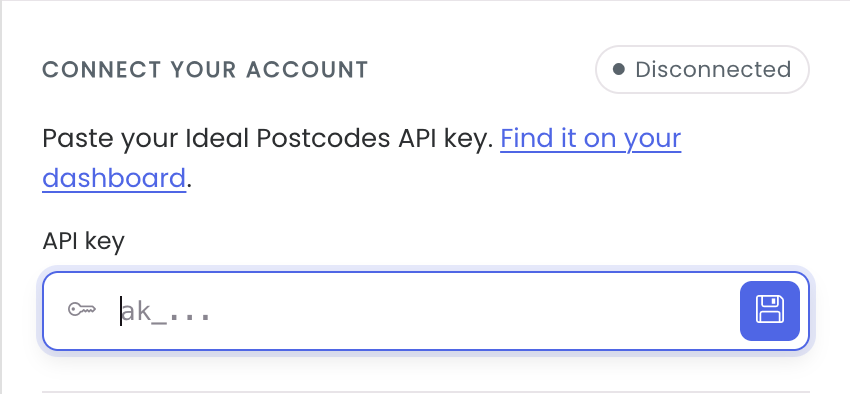
Paste your API Key into the field and click the save icon (or press Enter)
-
The Disconnected badge flips to Connected once the key is verified, and the action buttons become active
The key is stored in OfficeRuntime.storage, scoped to your user and the add-in. It is never written into a cell or into the workbook file, and it is never sent anywhere other than the Ideal Postcodes API. Sharing the workbook does not share the key.
4. Cleanse a column of addresses
- Highlight the cells containing your addresses
- (Optional) Click Write Headers first to drop the 31 column labels at the active cell - useful for placing a header row above your data
- Click Cleanse Selection in the task pane
- The 31 result columns are written as plain values into the cells immediately right of your selection
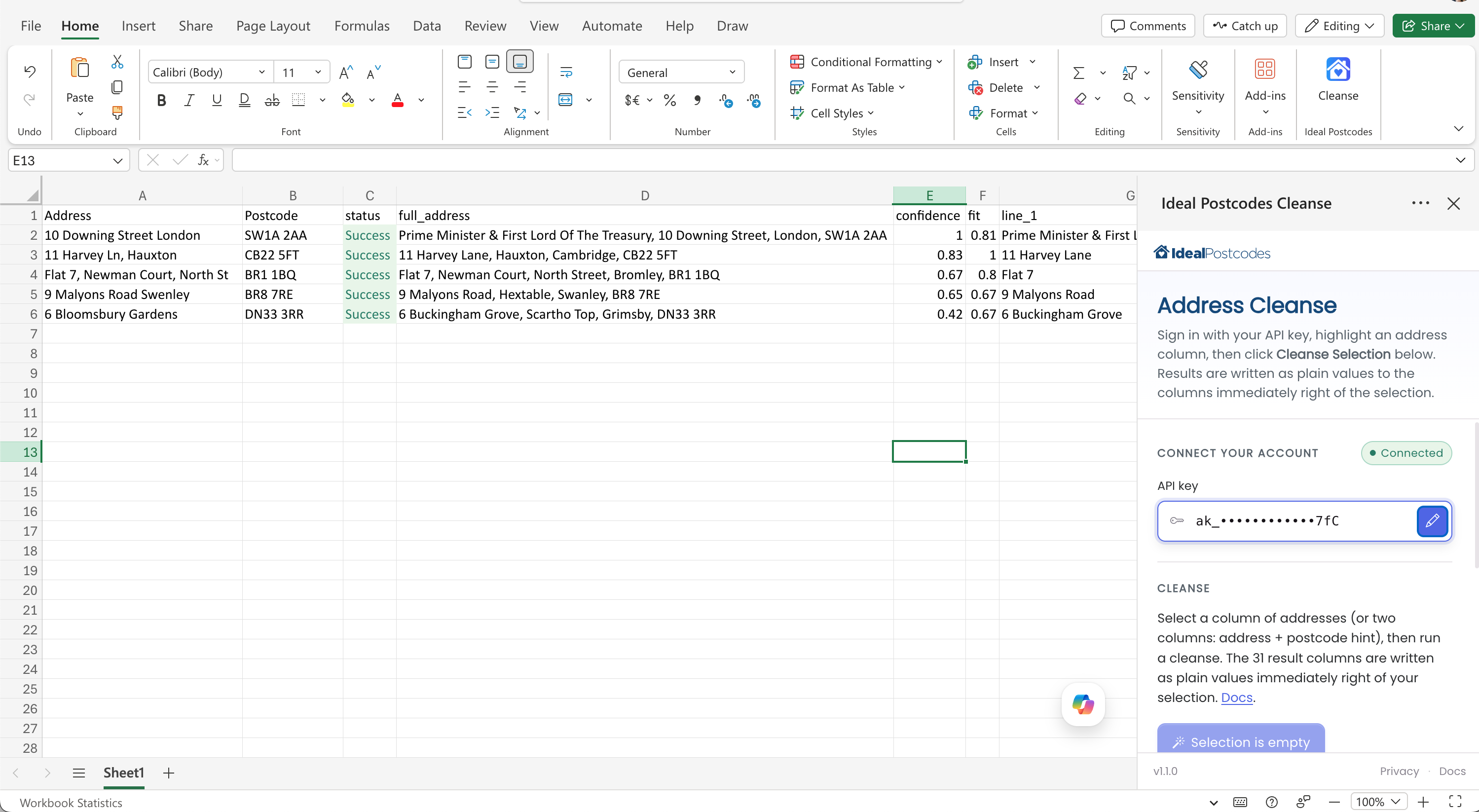
A progress banner in the task pane shows Cleansing X / Y… while the run is in flight. When it finishes, you'll see Cleansed N rows. (or Cleansed N rows · M failed. if any rows errored).
Selection shapes
One column of freeform addresses:
| A |
|---|
| 10 Downing St, London SW1A 2AA |
| Buckingham Palace Rd, London |
| BR8 7RE |
Cleanse Selection writes results into B:AF.
Two columns - address + postcode hint:
| A | B |
|---|---|
| 10 Downing St | SW1A 2AA |
| Buckingham Palace | SW1A 1AA |
The second column is used as a postcode hint to disambiguate matches. Cleanse Selection writes results into C:AG.
If you select more than two columns, the run aborts with an error in the task pane - the add-in won't guess which column is which.
5. Error messages
Per-row failures are written inline: the status column for that row reads Error: <message> and the remaining 30 columns are blank. The task pane summarises the total failed count when the run finishes.
Add-in-wide failures are shown as a red banner in the task pane.
| Message | What it means |
|---|---|
No API key set. Sign in above to continue. | The task pane has no key stored. Paste one into the field above and save. |
Invalid or unauthorised API key | Key is malformed, revoked, or the active key restrictions exclude the request. Check your Keys dashboard. |
Cleanse credit exhausted | The key has no available Cleanse credit. Top up or upgrade. |
Select one column of addresses, or two columns (address + postcode hint). | The selection has more than two columns. Re-select 1 or 2 columns and try again. |
Need help? Contact our support team via live chat on our website or email support@ideal-postcodes.co.uk.