# Zoho CRM
Add Address Finder to Zoho CRM with our Browser Extension.
## Features[](#features "Direct link to Features")
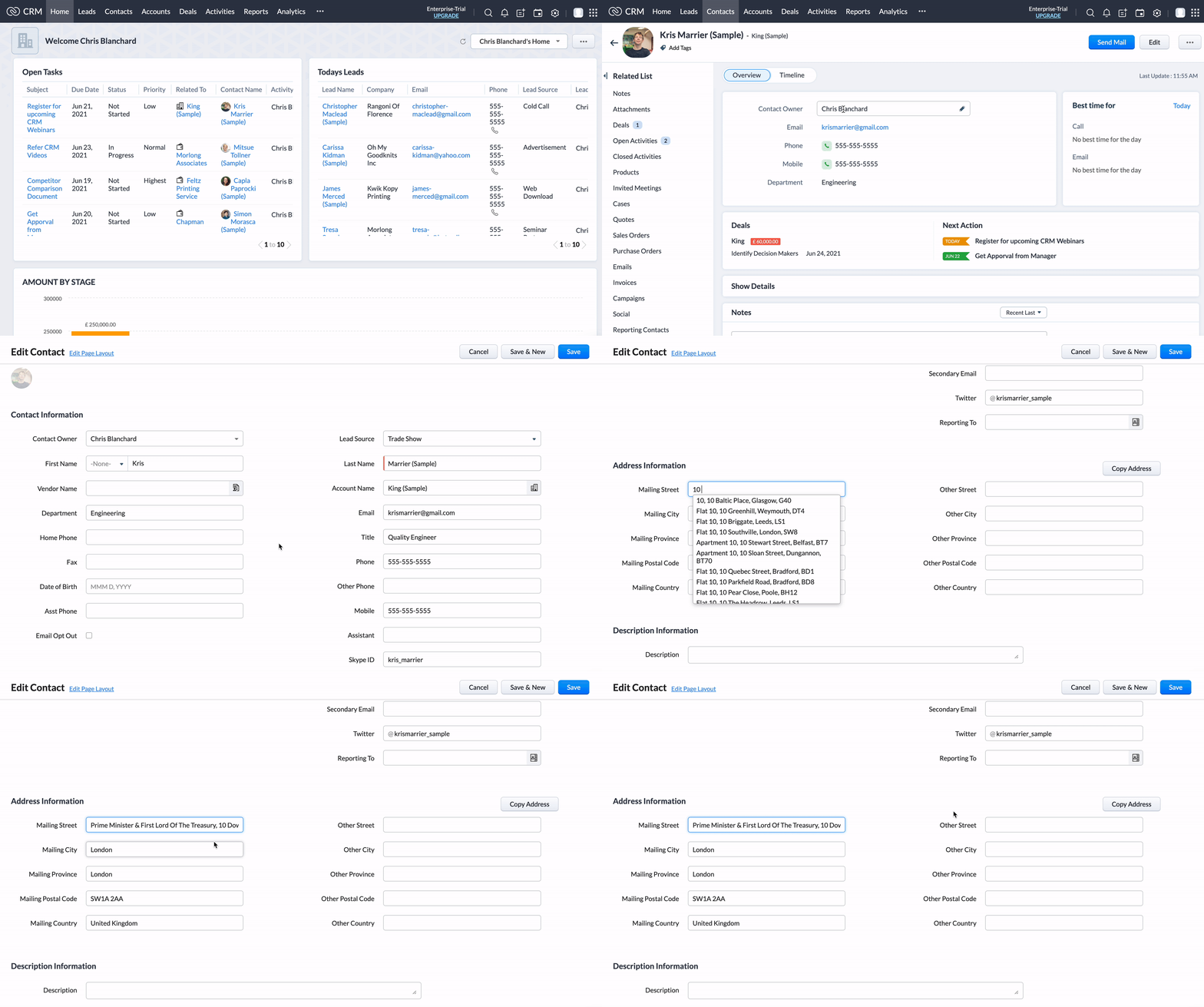
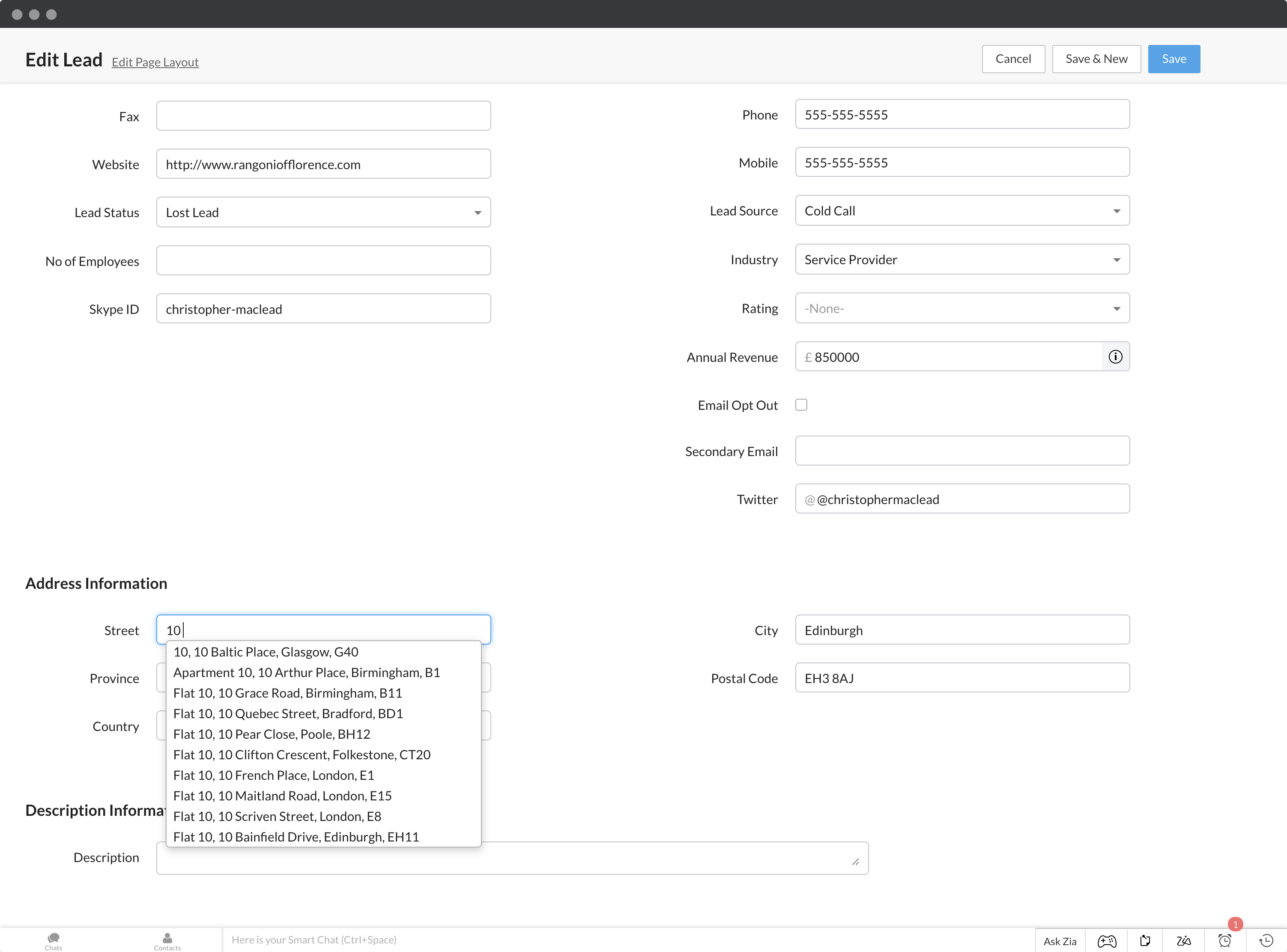
* Adds UK Address Finder to Zoho CRM contacts and leads on Address Line One
* Allows for dynamic assignment of address fields if you have customised your Zoho address forms
* Subform support
## Screenshots[](#screenshots "Direct link to Screenshots")
## Installation[](#installation "Direct link to Installation")
This integration uses the Ideal Postcodes Extension which can be downloaded from the Chrome or Firefox extension marketplaces.
See our [Browser Extension guide](/docs/integrations/browser-extension.md) for more information.
## Configuration[](#configuration "Direct link to Configuration")
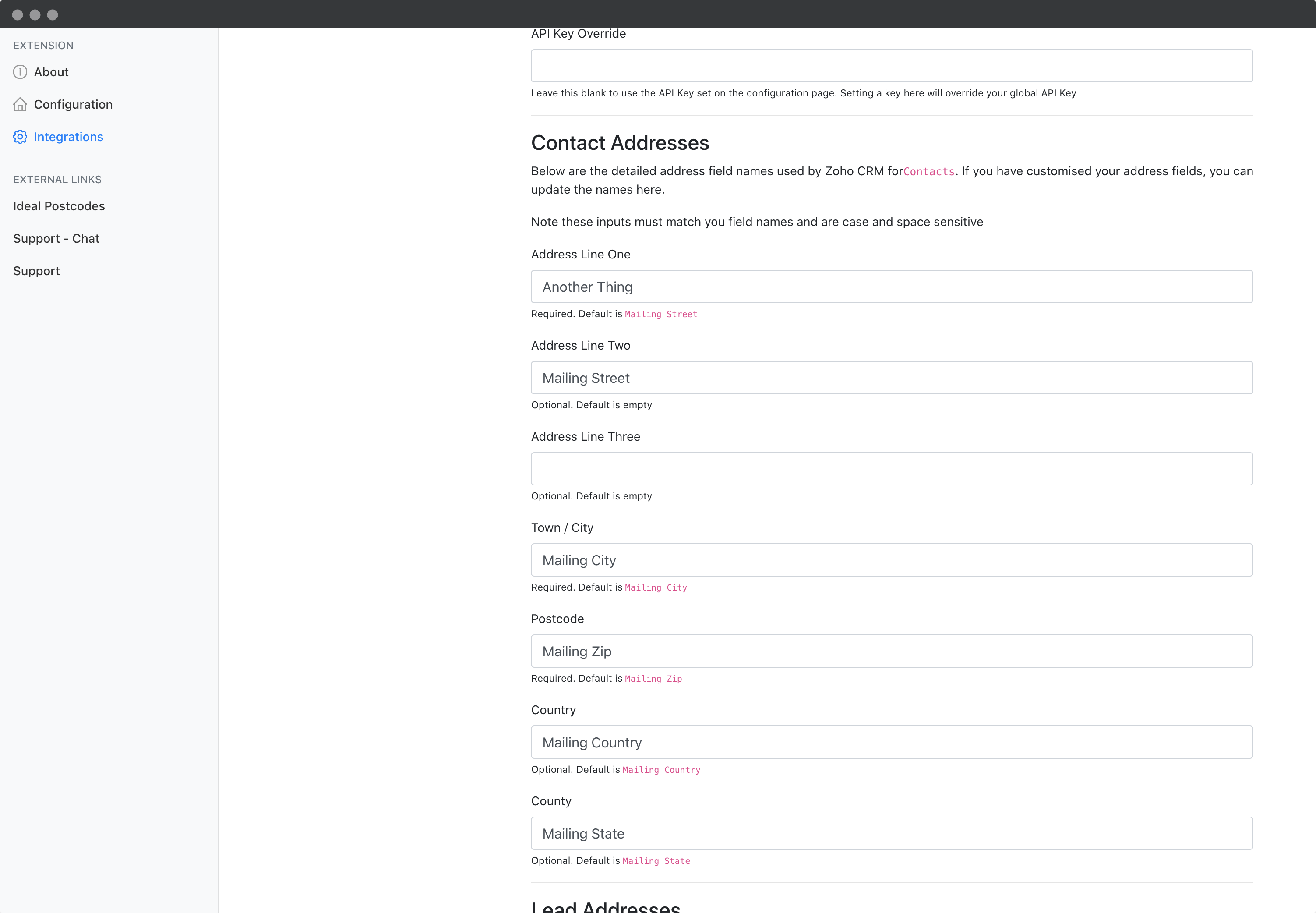
Configuring Zoho CRM integration may require extra steps if you have customised your address fields.
For each new field you have created or renamed, you may need to assign an address field to it.
For instance, the default first address line for a contact is `Mailing Street`. You may wish to change this to `Address Lines` or `Address Line One`. In that instance, you must enter the exact field name in the Address Line One configuration box.
Similarly, the default postcode line for a contact is `Mailing Zip`. If you have changed this to `Postcode`, you must update the Postcode field to `Postcode`.
Address Finder will always be enabled on Address Line 1.
### Configure Custom Address Fields[](#configure-custom-address-fields "Direct link to Configure Custom Address Fields")
We've created an advanced input called Custom Address Fields (CAF). You can use this to
1. Enable address validation on an entirely custom address form (i.e. not provided by Zoho CRM)
2. Enable address validation on your form wizards
It requires you to specify the address targets, typically based on the ID of the input. CAFs are described with JSON, specifically an array of JSON objects. You may use the template below:
```
[
{
"line_1": "",
"line_2": "",
"line_3": "",
"post_town": "",
"postcode": "",
"county": "",
"country": ""
}
]
```
For each address form you wish to enable, you will need to create a JSON object (i.e. the section of code beginning and ending with curly braces `{}`). Note that:
* Each object must be separated by the comma
* The `line_1`, `post_town` and `postcode` fields are required
* Other fields not being used can be dropped
* The last line of a JSON object (e.g. `"country": ""` above) cannot have a comma at the end
* Check your CAF setup on jsonlint.com to make sure your syntax is valid
Each field needs to be assigned using an ID. This can be found by right-clicking on the input box in your address form or wizard, click "Inspect" and checking the `id=""` attribute of the highlighted HTML element.
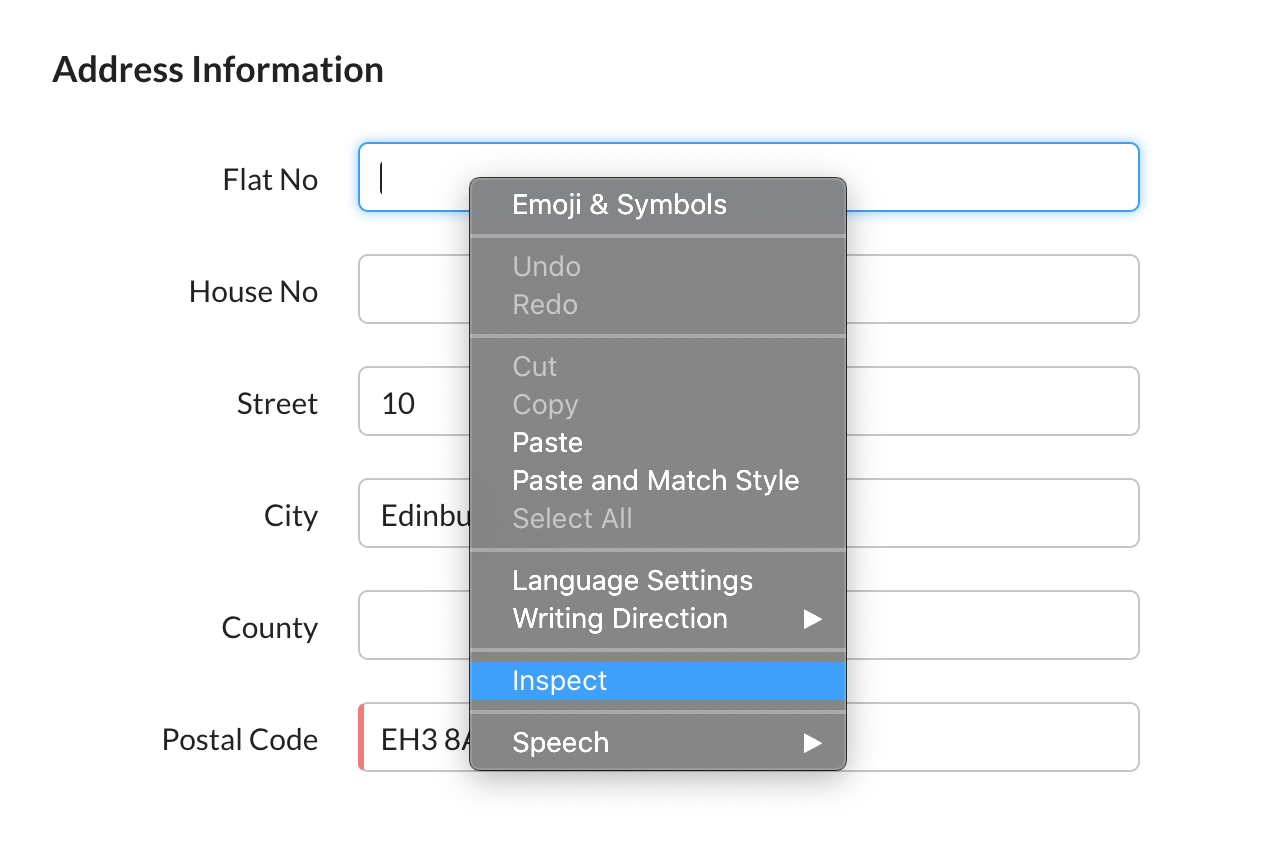
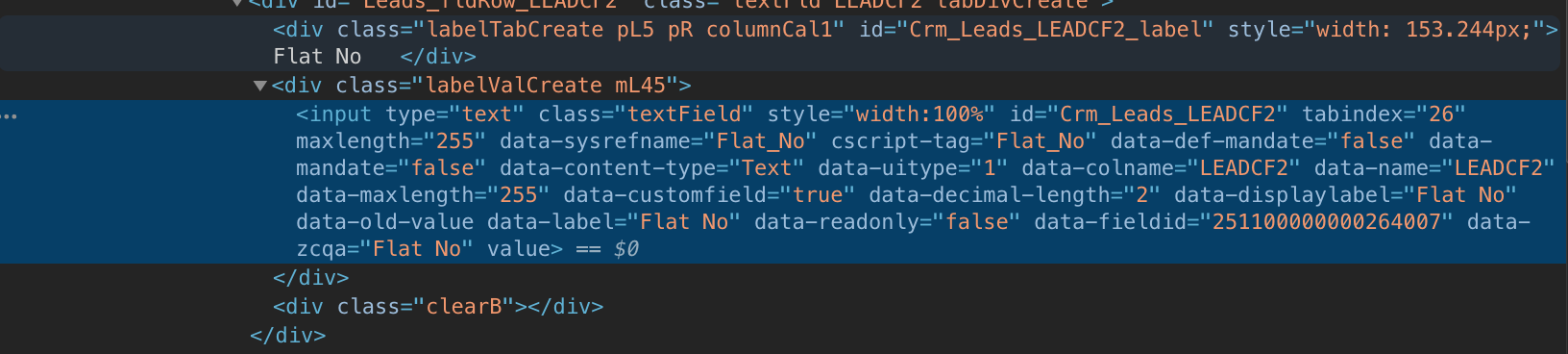
If the ID of your Address Line One reads `id="Crm_Leads_LEADCF2"`, then `line_1` entry of your custom address field should read `"line_1": "#Crm_Leads_LEADCF2"`. Repeat this for all the address fields you are interested in.
Here's an example CAF configuration:
```
[
{
"line_1": "#Crm_Leads_LEADCF2",
"post_town": "#Crm_Leads_CITY",
"postcode": "#Crm_Leads_ZIP",
"county": "#Crm_Leads_LEADCF3"
},
{
"line_1": "#Crm_Accounts_Lane",
"post_town": "#Crm_Accounts_Town",
"postcode": "#Crm_Accounts_Postal_Code",
"county": "#Crm_Accounts_County",
"country": "#Crm_Accounts_Country"
}
]
```
#### Custom Address Fields for Wizards[](#custom-address-fields-for-wizards "Direct link to Custom Address Fields for Wizards")
Identifying the ID of an input field is trickier for wizards. When you inspect a field, you will need to find the ID in the parent `crm-create-fields` element. Your ID entries will also need to be suffixed by `input`. For instance, if the ID for `line_1` is `Leads_fldRow_LANE`, then that line should read `"line_1": "#Leads_fldRow_LANE input"`.
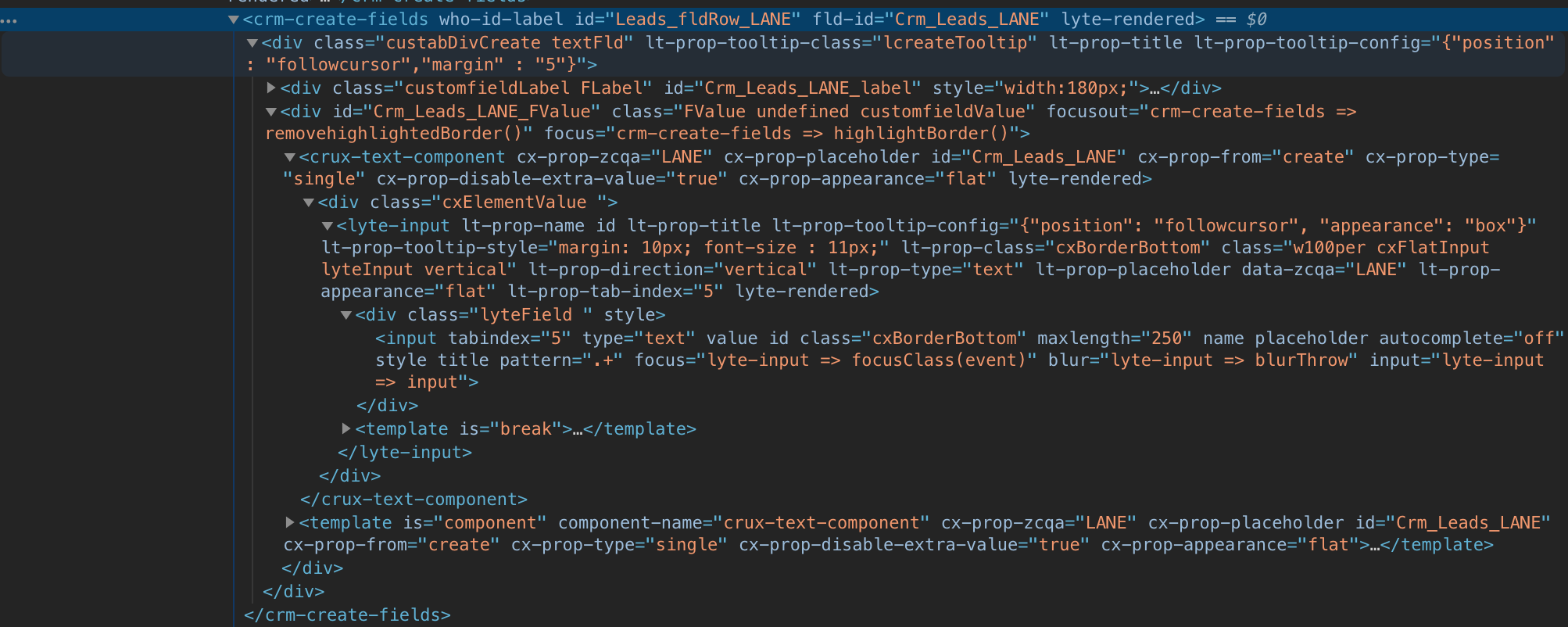
For example:
```
[
{
"line_1": "#Crm_Leads_LEADCF2 input",
"post_town": "#Crm_Leads_CITY input",
"postcode": "#Crm_Leads_ZIP input",
"county": "#Crm_Leads_LEADCF3 input"
}
]
```
### Subform[](#subform "Direct link to Subform")
To use the Zoho Browser Extension with Subform. Take note of the `` id and assign it to the correct address element.
For example
```
[
{
"line_1": "lyte-input#Potentials_Mailing_addresses_R1_Mailing_Street_1 input",
"line_2": "lyte-input#Potentials_Mailing_addresses_R1_Mailing_Street_2 input",
"line_3": "lyte-input#Potentials_Mailing_addresses_R1_Mailing_Street_3 input",
"post_town": "lyte-input#Potentials_Mailing_addresses_R1_Mailing_Street_4 input",
"postcode": "lyte-input#Potentials_Mailing_addresses_R1_Mailing_Street_5 input"
}
]
```
info
You can enable the custom CSS for the Subform Address Finder by clicking the checkbox inside the extension.
## Supported Forms[](#supported-forms "Direct link to Supported Forms")
### Support URL Paths:[](#support-url-paths "Direct link to Support URL Paths:")
* /contacts
* /leads
* /accounts
### Address Field Selectors (Supported Fields)[](#address-field-selectors-supported-fields "Direct link to Address Field Selectors (Supported Fields)")
Leads
```
{
line_1: toAttr("Street", "Leads", "Lane"),
post_town: toAttr("City", "Leads"),
county: toAttr("State", "Leads"),
postcode: toAttr("Zip Code", "Leads", "Code"),
country: toAttr("Country", "Leads"),
}
```
Mailing Contacts
```
{
line_1: toAttr("Mailing Street", "Contacts"),
post_town: toAttr("Mailing City", "Contacts"),
county: toAttr("Mailing State", "Contacts"),
postcode: toAttr("Mailing Zip", "Contacts"),
country: toAttr("Mailing Country", "Contacts"),
}
```
Other Contacts
```
{
line_1: toAttr("Other Street", "Contacts"),
post_town: toAttr("Other City", "Contacts"),
county: toAttr("Other State", "Contacts"),
postcode: toAttr("Other Zip", "Contacts"),
country: toAttr("Other Country", "Contacts"),
}
```
Account Billing
```
{
line_1: toAttr("Billing Street", "Accounts"),
post_town: toAttr("Billing City", "Accounts"),
county: toAttr("Billing State", "Accounts"),
postcode: toAttr("Billing Code", "Accounts"),
country: toAttr("Billing Country", "Accounts"),
}
```
Account Shipping
```
{
line_1: toAttr("Shipping Street", "Accounts"),
post_town: toAttr("Shipping City", "Accounts"),
county: toAttr("Shipping State", "Accounts"),
postcode: toAttr("Shipping Code", "Accounts"),
country: toAttr("Shipping Country", "Accounts"),
}
```
info
Still need help? Contact our support team via live chat on our website or email .