# Installing Address Validation for PageFly
To add address validation to your PageFly store, follow these simple steps. This guide will walk you through signing up for a free trial, creating a form and configuring the code.
## Demo[](#demo "Direct link to Demo")
### Address Finder[](#address-finder "Direct link to Address Finder")
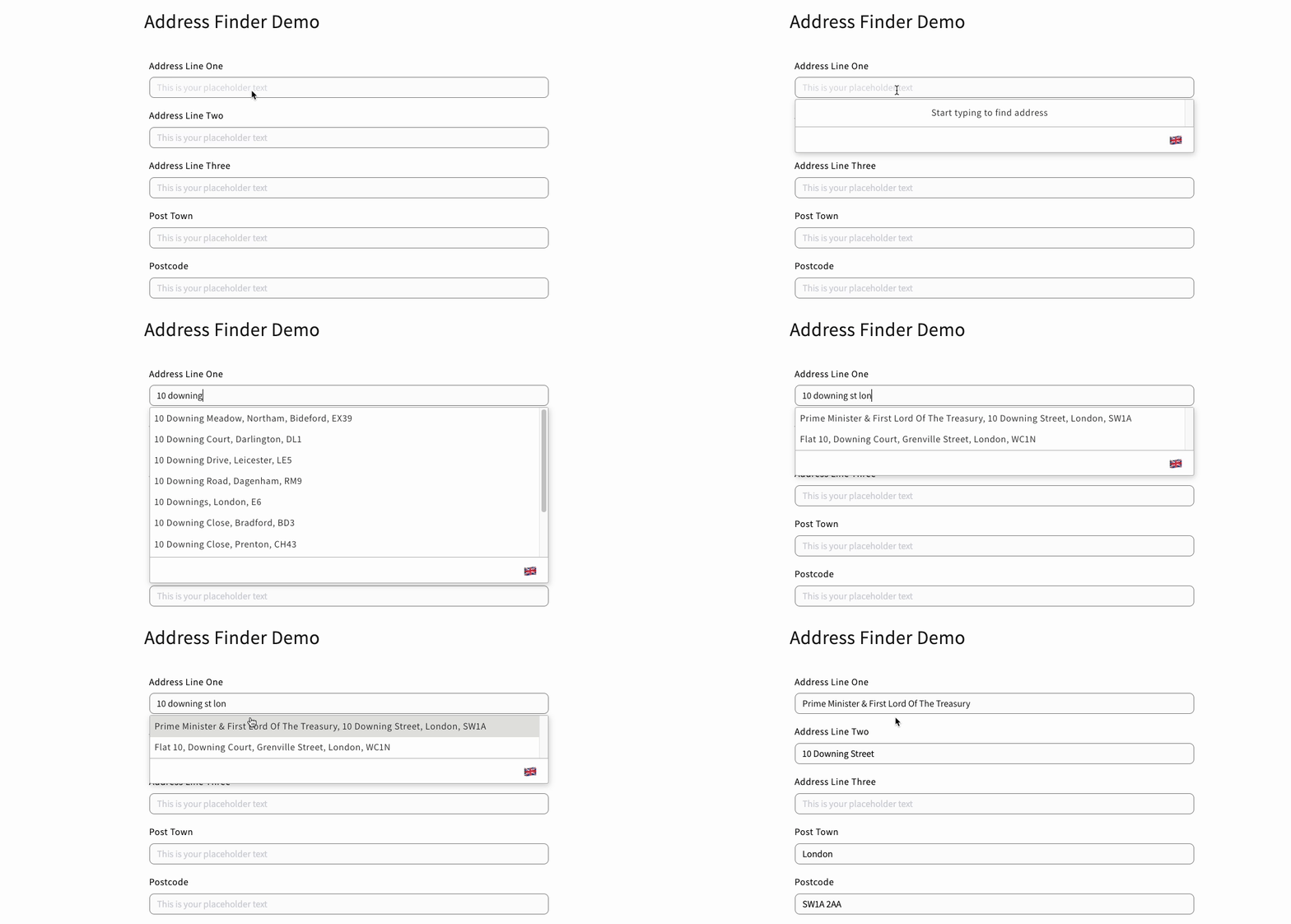
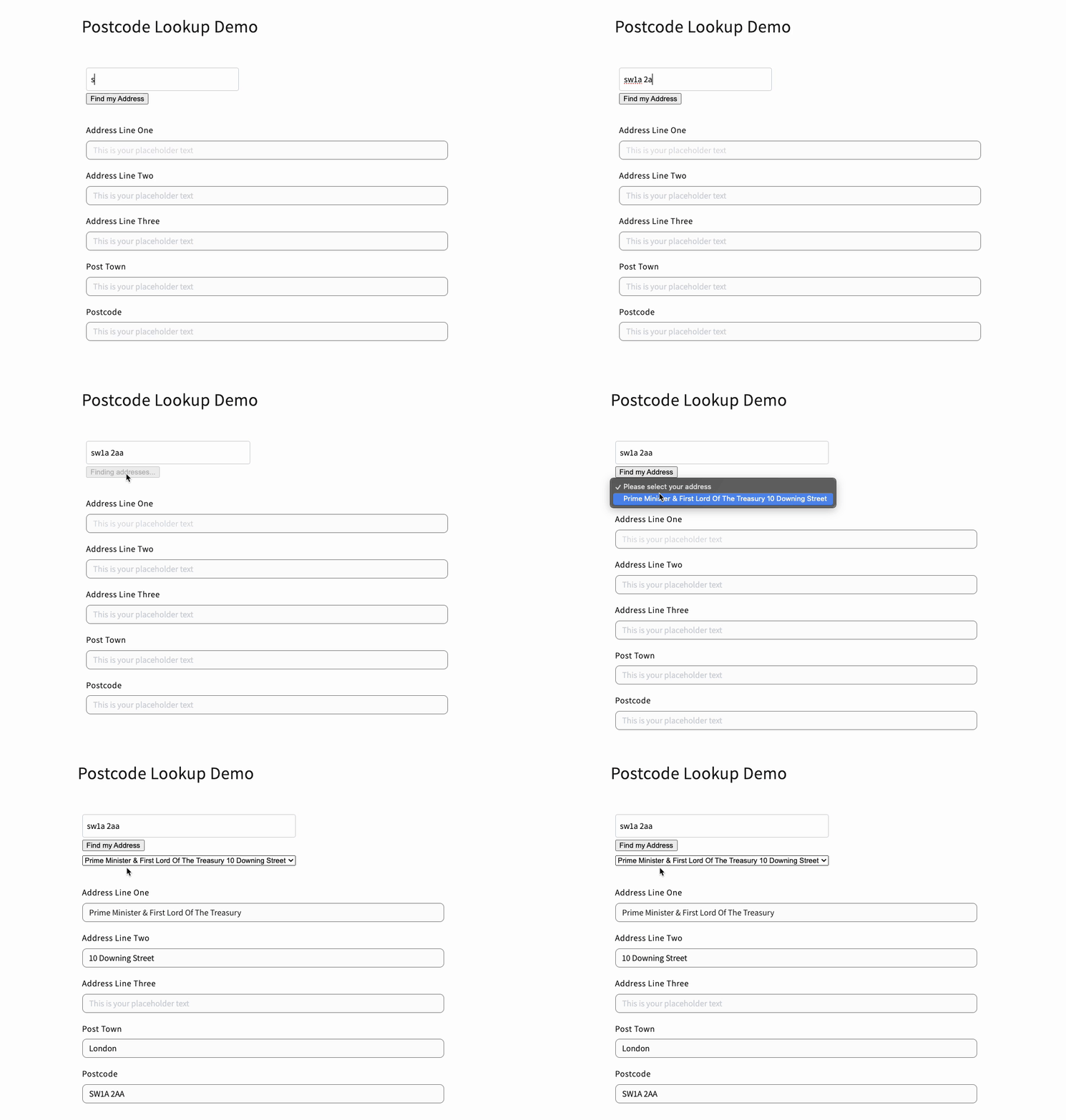
### Postcode Lookup[](#postcode-lookup "Direct link to Postcode Lookup")
***
## Step 1: Sign Up for a Free Trial[](#step-1-sign-up-for-a-free-trial "Direct link to Step 1: Sign Up for a Free Trial")
To use Ideal Postcodes, you’ll first need to create an account and get your API key.
1. If you don’t have an account [sign up to create a free account](https://account.ideal-postcodes.co.uk/users/sign_up).
2. Navigate to the [**KEYS**](https://account.ideal-postcodes.co.uk/tokens) section in your account.
3. **Copy your API Key -** you’ll need this to complete the setup. It’s a string of characters that begins with the letters `ak_`. On signing up your first key will have a balance of 50 free lookups for testing.
***
## Step 2: Create a Form[](#step-2-create-a-form "Direct link to Step 2: Create a Form")
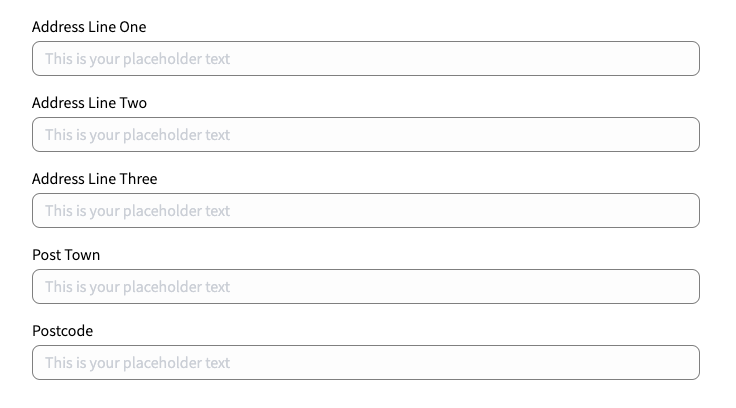
Add address input fields to your form. These should be created using `Single Line Text`. You can find this in the `Elements` menu under the `Shopify` tab then select to `Customer Form Field`.
A basic address form to capture a correct UK address requires the following fields:
* Address line one
* Address line two
* Address line three
* Post town
* Postcode
***
## Step 3: Drop in Script[](#step-3-drop-in-script "Direct link to Step 3: Drop in Script")
You can integrate either Address Finder or Postcode Lookup to your form.
### Address Finder[](#address-finder-1 "Direct link to Address Finder")
In the `Elements` menu in the `PageFly` tab, select `HTML/Liquid` and place it at the bottom of your form.
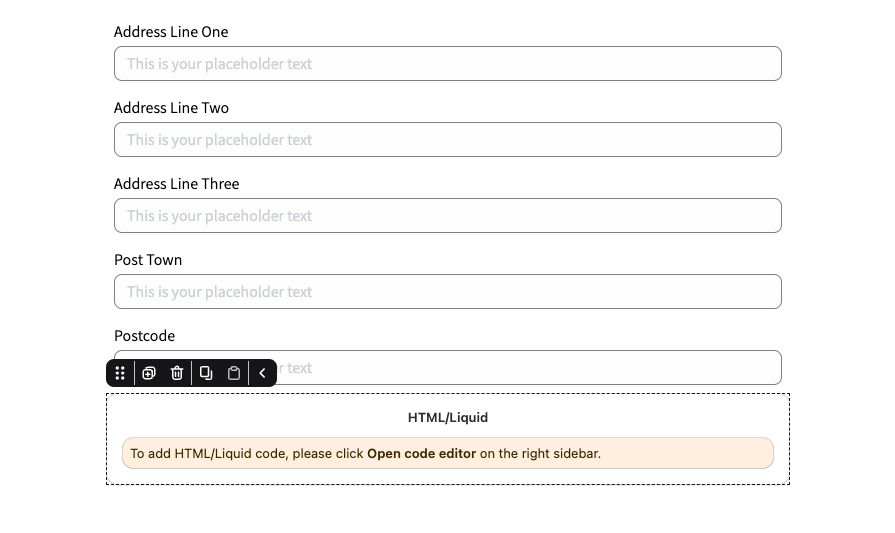
Open the code editor and add the following code to the bottom of your form:
```
```
info
* Replace the apiKey with the key that is supplied when you created your account.
* Ensure you are using the correct identifiers for your address fields.
***
### Postcode Lookup[](#postcode-lookup-1 "Direct link to Postcode Lookup")
In the `Elements` menu in the `PageFly` tab, select `HTML/Liquid` and place it at the bottom of your form.

Open the code editor and add the following code to the bottom of your form:
```
```
Add another `HTML block` and place it at the top of the form and add the HTML code below:
```
```
info
* The ID that you provide here must match the ID provided in context
* Replace the API key with the one supplied when you created your account
* Ensure you are using the correct identifiers for your address fields
***
## Customisation[](#customisation "Direct link to Customisation")
Both libraries can be customised to suit your needs.
For Address Finder, head over to the [Address Finder documentation](/docs/address-finder.md) for more information.
For Postcode Lookup, head over to the [Postcode Lookup documentation](/docs/postcode-lookup.md) for more information.
## Troubleshooting[](#troubleshooting "Direct link to Troubleshooting")
If you encounter any issues during installation or configuration:
* Make sure you’ve correctly entered your API key.
* Ensure that the input selectors in the code match your input fields.
info
Still need help? Contact our support team via live chat on our website or email .