# 
Integrate Address Validation to Your WordPress Formidable Forms.
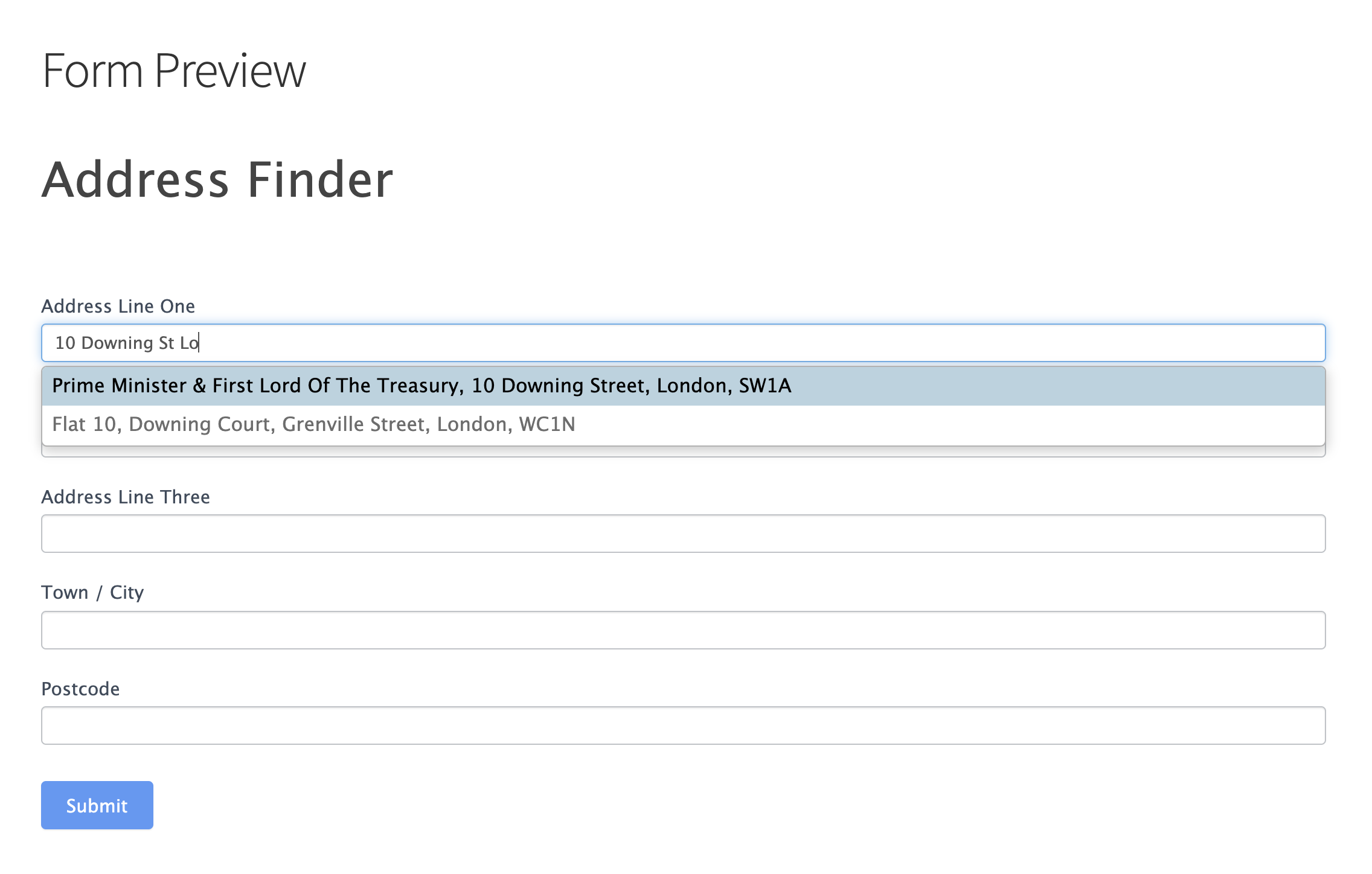
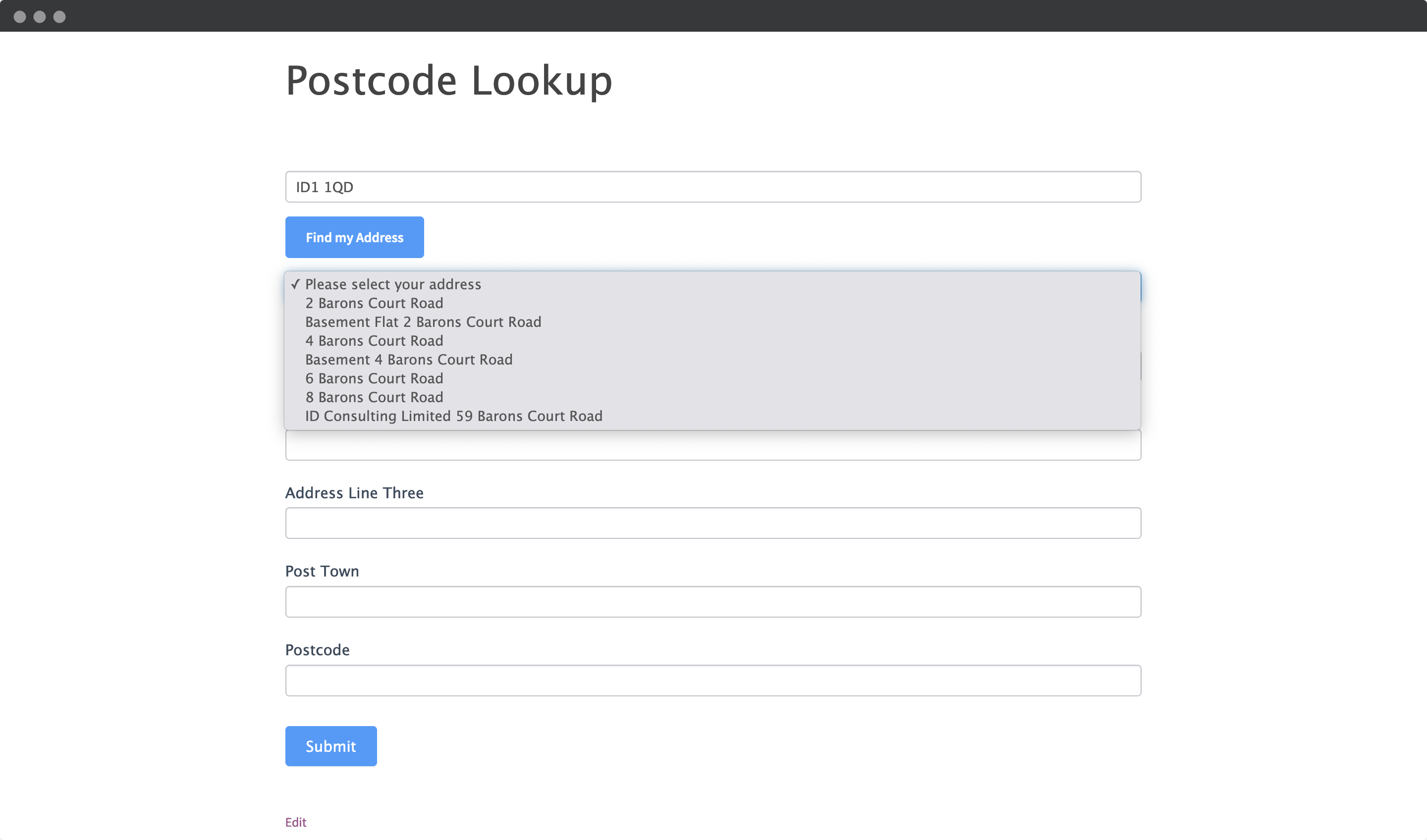
## Installation[](#installation "Direct link to Installation")
This integration works by hooking into Formidable Form's custom HTML functionality.
### Create Address Inputs[](#create-address-inputs "Direct link to Create Address Inputs")
Add address input fields to your form. A basic address form to capture a correct UK address requires the following fields:
* Address line one
* Address line two
* Address line three
* Post town
* Postcode
You can optionally include additional fields, which are documented in the [PAF data documentation](/docs/data/paf.md).
tip
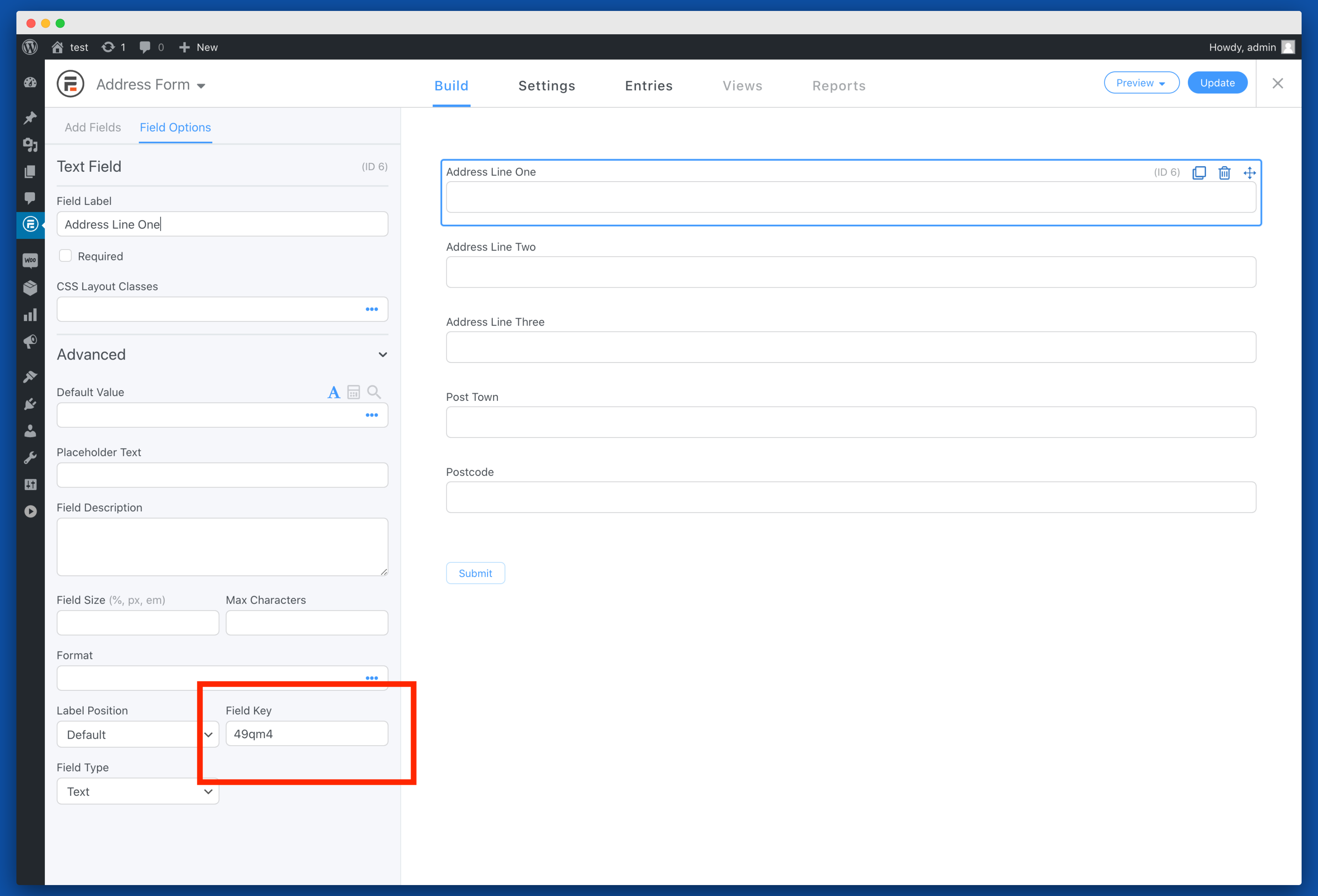
**Note the** `Field Key`s under the `Advanced` tab of the left sidebar. You will need this later to configure Address Finder.
### Add Address Finder[](#add-address-finder "Direct link to Add Address Finder")
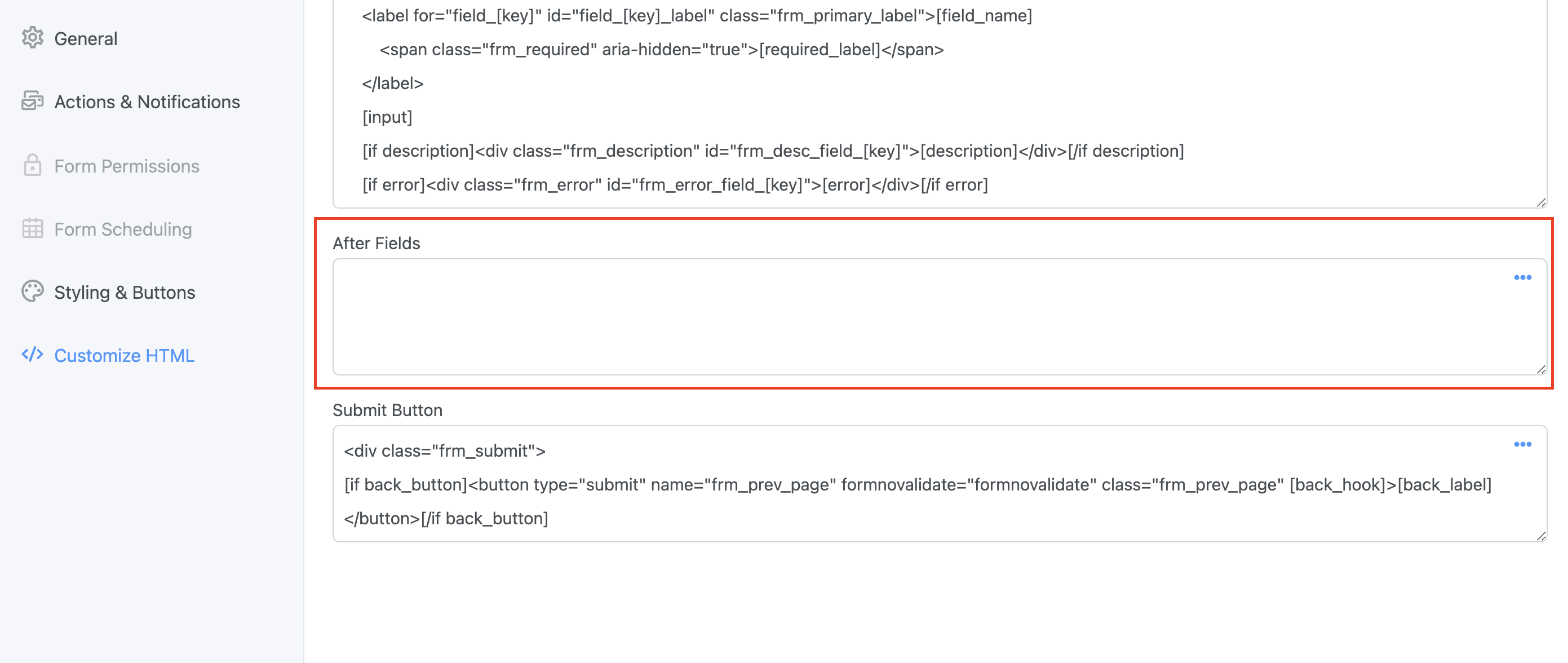
Navigate to the Custom HTML setting by clicking on the `Settings` tab, then `Customize HTML` in the left sidebar and scroll to `After Fields`. It is in the `After Fields` section where the Address Finder is loaded and initialised.
Add the following Script Tag to load and initialise Address Finder.
```
```
caution
Special care is required to:
* Update the `apiKey` attribute with the API Key from your account. Your API Key typically begins with `ak_`
* Update the `outputFields` attribute with the `Field Keys` tied to your form inputs
* Update the `inputField` attribute with the `Field Key` for the first line of your address form
Your API Key is required to authenticate your form with your Ideal Postcodes account.
When inserting Field Keys, they must be prepending with `#field_`. So if your first address line Field Key is `49qm4`, the `line_1` parameter is `#field_49qm4`.
The `outputFields` parameter tells the plugin where to send address fragments like first line, postcode, etc. Your input fields are identified by IDs which look like `#field_XXXXX`.
The `inputField` parameter tells the plugin where the Address Finder box should appear. Typically, this is the same as your `line_1` parameter
tip
If you wish to add an additional field, include the parameter name [from our documentation](/docs/data/paf.md). For instance, adding a county field with Field Key `abcde` will look like:
```
IdealPostcodes.AddressFinder.setup({
apiKey: "Your Key",
outputFields: {
line_1: "#field_49qm4",
line_2: "#field_sdg3d",
line_3: "#field_14ydv",
post_town: "#field_5yzek",
postcode: "#field_xaiqo",
county: "#field_abcde",
},
});
```
### Add Postcode Lookup[](#add-postcode-lookup "Direct link to Add Postcode Lookup")
#### 1. Add Postcode Lookup HTML Element[](#1-add-postcode-lookup-html-element "Direct link to 1. Add Postcode Lookup HTML Element")
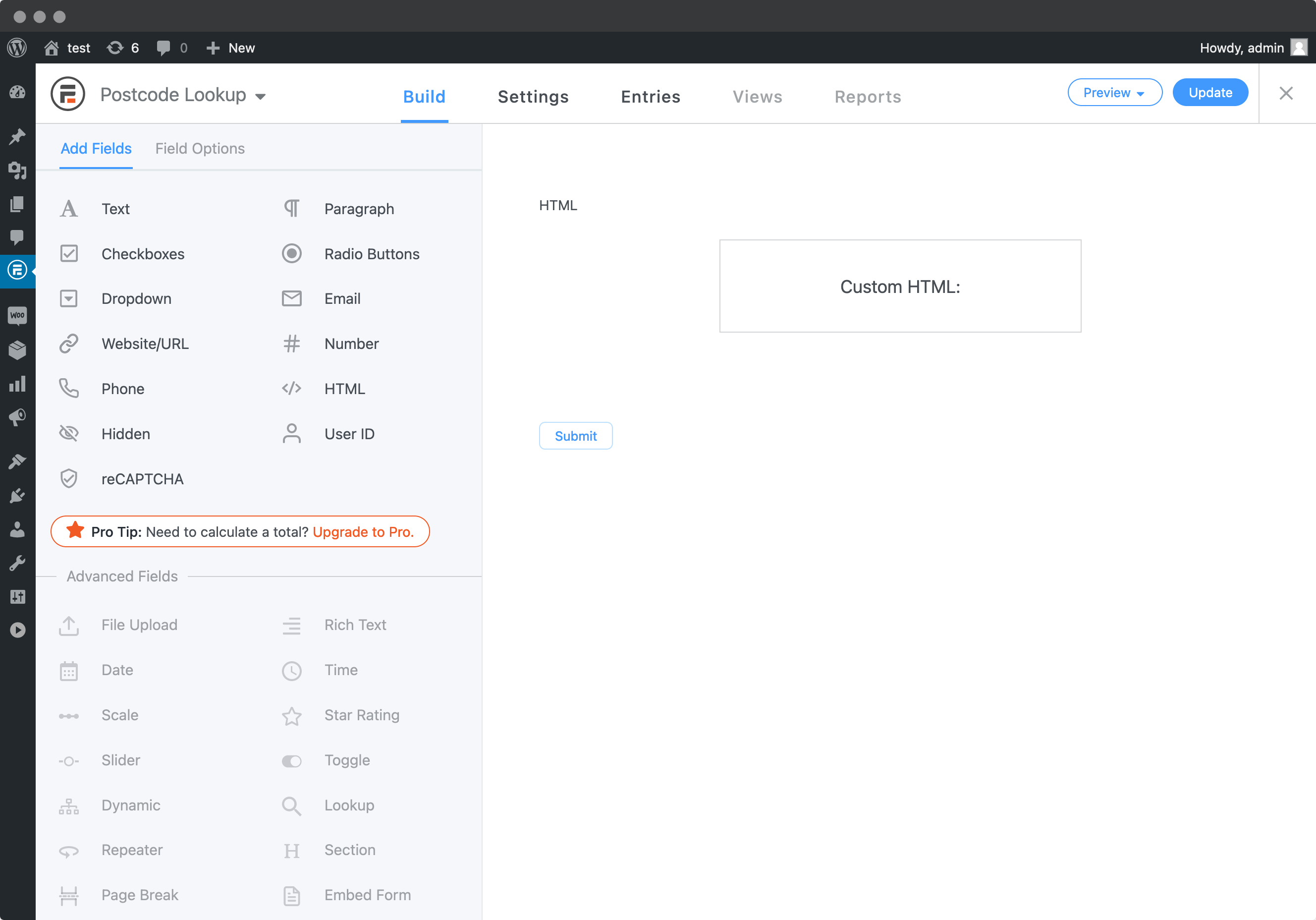
Create a HTML Field above your first address field to scaffold your postcode search field, search button and address dropdown for the plugin.
To do this, on the `Add Fields` section, click on `HTML` and insert the following in the `Content` box:
```
```
#### 2. Load and Configure Postcode Lookup Plugin[](#2-load-and-configure-postcode-lookup-plugin "Direct link to 2. Load and Configure Postcode Lookup Plugin")
Navigate to the Custom HTML setting by clicking on the `Settings` tab, then `Customize HTML` in the left sidebar and scroll to `After Fields`. It is in the `After Fields` section where the Address Finder is loaded and initialised.
Add the following Script Tag to load and initialise Address Finder.
```
```

tip
You may also style components of the Postcode Lookup field, e.g. for the button, you can assign it a CSS class selector. In the example above, we added the `buttonClass` attribute to the initialistion code, with a class name of `lookup-button`.
To style the button, you may place a `style` tag in the `After Scipt` Box. Place it before the Postcode Lookup initialisation code.
```
```
caution
Special care is required to:
* Update the `apiKey` attribute with the API Key from your account. Your API Key typically begins with `ak_`
* Update the `outputFields` attribute with the `Field Keys` tied to your form inputs
* Update the `context` attribute with the `id` used in the HTML `div` element created in step 1.
Your API Key is required to authenticate your form with your Ideal Postcodes account.
When inserting Field Keys, they must be prepending with `#field_`. So if your first address line Field Key is `49qm4`, the `line_1` parameter is `#field_49qm4`.
The `outputFields` parameter tells the plugin where to send address fragments like first line, postcode, etc. Your input fields are identified by IDs which look like `#field_XXXXX`.
The `inputField` parameter tells the plugin where the Address Finder box should appear. Typically, this is the same as your `line_1` parameter
tip
If you wish to add an additional field, include the parameter name [from our documentation](/docs/api/addresses.md). For instance, adding a county field with Field Key `abcde` will look like:
```
IdealPostcodes.PostcodeLookup.setup({
apiKey: "ak_test",
context: "#lookup_field",
outputFields: {
line_1: "#field_z9ghk",
line_2: "#field_j0ep",
line_3: "#field_jmuiw",
post_town: "#field_qgsnb",
postcode: "#field_h2n4z",
county: "#field_abcde",
},
});
```
## Configuration[](#configuration "Direct link to Configuration")
See our [Address Finder Plugin Documentation](/docs/address-finder.md) if you wish to customise Address Finder.
See our [Postcode Lookup Plugin Documentation](/docs/postcode-lookup.md) if you wish to customise Postcode Lookup.
info
Still need help? Contact our support team via live chat on our website or email .