# ![Ideal Postcodes FormAssembly Integration](https://img.ideal-postcodes.co.uk/FormAssembly%20Integration%20Logo@3x.png)

Integrate Address Validation to Your FormAssembly Pages.

## Features[​](#features "Direct link to Features")

* Bind address autocompletion to your address fields
* Add one or more postcode lookup fields

## Screenshots[​](#screenshots "Direct link to Screenshots")

### Postcode Lookup[​](#postcode-lookup "Direct link to Postcode Lookup")

![Quickly populate your address fields-screenshot](https://img.ideal-postcodes.co.uk/formassembly-postcode-lookup-screenshot.png)

### Address Finder[​](#address-finder "Direct link to Address Finder")

![Activate Address Finder on your address collection forms-screenshot](https://img.ideal-postcodes.co.uk/formassembly-address-finder-screenshot.png)

## Installation[​](#installation "Direct link to Installation")

This integration works by adding our Address Finder tool using FormAssembly's custom code feature.

![Create New Form-screenshot](https://img.ideal-postcodes.co.uk/formassembly-forms-list-screenshot.png)

### Create Address Fields[​](#create-address-fields "Direct link to Create Address Fields")

On your form, firstly add an Address Finder Field. You can do this by creating a text input field and then updating the input label and/or placeholder to something like `Start typing to find your address`.

![Create the Address Finder Field and then your address fields-screenshot](https://img.ideal-postcodes.co.uk/formassembly-field-properties-screenshot.png)

Next, create your Address inputs beneath. We recommend the following address structure to correctly capture UK addresses:

* Address line one (required)
* Address line two
* Address line three
* Post town (required)
* Postcode (required)

### Add Address Finder[​](#add-address-finder "Direct link to Add Address Finder")

#### Install and Initialise Plugin[​](#install-and-initialise-plugin "Direct link to Install and Initialise Plugin")

When your form is complete, make a note of the field names of your Address Finder Field and your address fields. This is the grey text in the `Form Outline` box, you will need it to direct your user's selected address to the right fields.

Add our JavaScript library to your page with Custom Code. Click the `Properties` option on the top of the page. Next, in the `Form Properties` panel, click on `Custom Code`.

Add and adapt the following to load the plugin and then to initialise it.

```
<script src="https://cdn.jsdelivr.net/npm/@ideal-postcodes/address-finder-bundled"></script>


<script>

	document.addEventListener("DOMContentLoaded", function () {

		IdealPostcodes.AddressFinder.setup({

			apiKey: "YOUR_API_KEY",

			inputField: 'input[name="tfa_1"]',

			outputFields: {

				line_1: 'input[name="tfa_2"]',

				line_2: 'input[name="tfa_3"]',

				line_3: 'input[name="tfa_4"]',

				post_town: 'input[name="tfa_5"]',

				postcode: 'input[name="tfa_6"]',

			},

		});

	});

</script>
```

caution

Take special care to:

1. Insert your API Key in the `apiKey` field
2. Match the names of your target fields. You can verify this on the 'Form Outline' panel. If the field name for Address Line One is `tfa_2`, `line_1:` should read `'input[name="tfa_2"]'`.

![Ensure the attributes match the field values-screenshot](https://img.ideal-postcodes.co.uk/formassembly-form-outline-screenshot.png)

If you wish to add an additional field, include the parameter name [from our documentation](/docs/api/addresses.md). For instance, adding a county field with name `county` will look like:

```
outputFields: {

  line_1: 'input[name="tfa_2"]',

  line_2: 'input[name="tfa_3"]',

  line_3: 'input[name="tfa_4"]',

  post_town: 'input[name="tfa_5"]',

  county: 'input[name="tfa_6"]',

  postcode: 'input[name="tfa_7"]'

}
```

### Add Postcode Lookup[​](#add-postcode-lookup "Direct link to Add Postcode Lookup")

#### Add HTML Element[​](#add-html-element "Direct link to Add HTML Element")

Create a HTML `div` field above your first address field to scaffold your postcode search field, search button and address dropdown for the plugin.

To do so, click on the blue 'Add Content' button, followed by 'Text and Image' and select the 'Text' option. This should open the toolbar, to which you should click on the 'HTML' option. An 'Edit HTML' modal should display on screen and in the editor, add the following markup and click on 'Save HTML':

```
<div id="idpc"></div>
```

![Add HTML above the first address field-screenshot](https://img.ideal-postcodes.co.uk/formassembly-postcode-lookup-edit-html-screenshot.png)

#### Install and Initialise Plugin[​](#install-and-initialise-plugin-1 "Direct link to Install and Initialise Plugin")

Add our Postcode Lookup library to your page with Custom Code. Click the `Properties` option on the top of the page. Next, in the `Form Properties` panel, click on `Custom Code`.

Add and adapt the following to load the plugin and then to initialise it.

```
<script src="https://cdn.jsdelivr.net/npm/@ideal-postcodes/postcode-lookup-bundled"></script>


<script>

	document.addEventListener("DOMContentLoaded", function () {

		IdealPostcodes.PostcodeLookup.setup({

			apiKey: "YOUR_API_KEY",

			context: "#idpc",

			buttonClass: "postcode-search-button",

			inputClass: "idpc-input",

			selectClass: "idpc-select",

			outputFields: {

				line_1: 'input[name="tfa_2"]',

				line_2: 'input[name="tfa_3"]',

				line_3: 'input[name="tfa_4"]',

				post_town: 'input[name="tfa_5"]',

				postcode: 'input[name="tfa_6"]',

			},

		});

	});

</script>
```

![Configure the Postcode Lookup plugin-screenshot](https://img.ideal-postcodes.co.uk/formassembly-postcode-lookup-script-screenshot.png)

caution

Take special care to:

1. Insert your API Key in the `apiKey` field
2. Match the names of your target fields. If your Address Line One has the shortcode `[text* line_1]`, ensure that `line_1` reads `'input[name="line_1"]'`. Do this for all the address fields you wish to include
3. Ensure `button`, `input` and `selectContainer` matches the `id`s of the lookup button, lookup field and address dropdown container in the fields created in Step 2
4. Ensure the `context` string matches the `id` of the last `<div>`. E.g. if `<div id="idpc"></div>`, the line of code should read `context: "#idpc"`

If you wish to add an additional field, include the parameter name [from our documentation](/docs/api/addresses.md). For instance, adding a county field with name `county` will look like:

```
outputFields: {

  line_1: 'input[name="tfa_2"]',

  line_2: 'input[name="tfa_3"]',

  line_3: 'input[name="tfa_4"]',

  post_town: 'input[name="tfa_5"]',

  county: 'input[name="tfa_6"]',

  postcode: 'input[name="tfa_7"]'

}
```

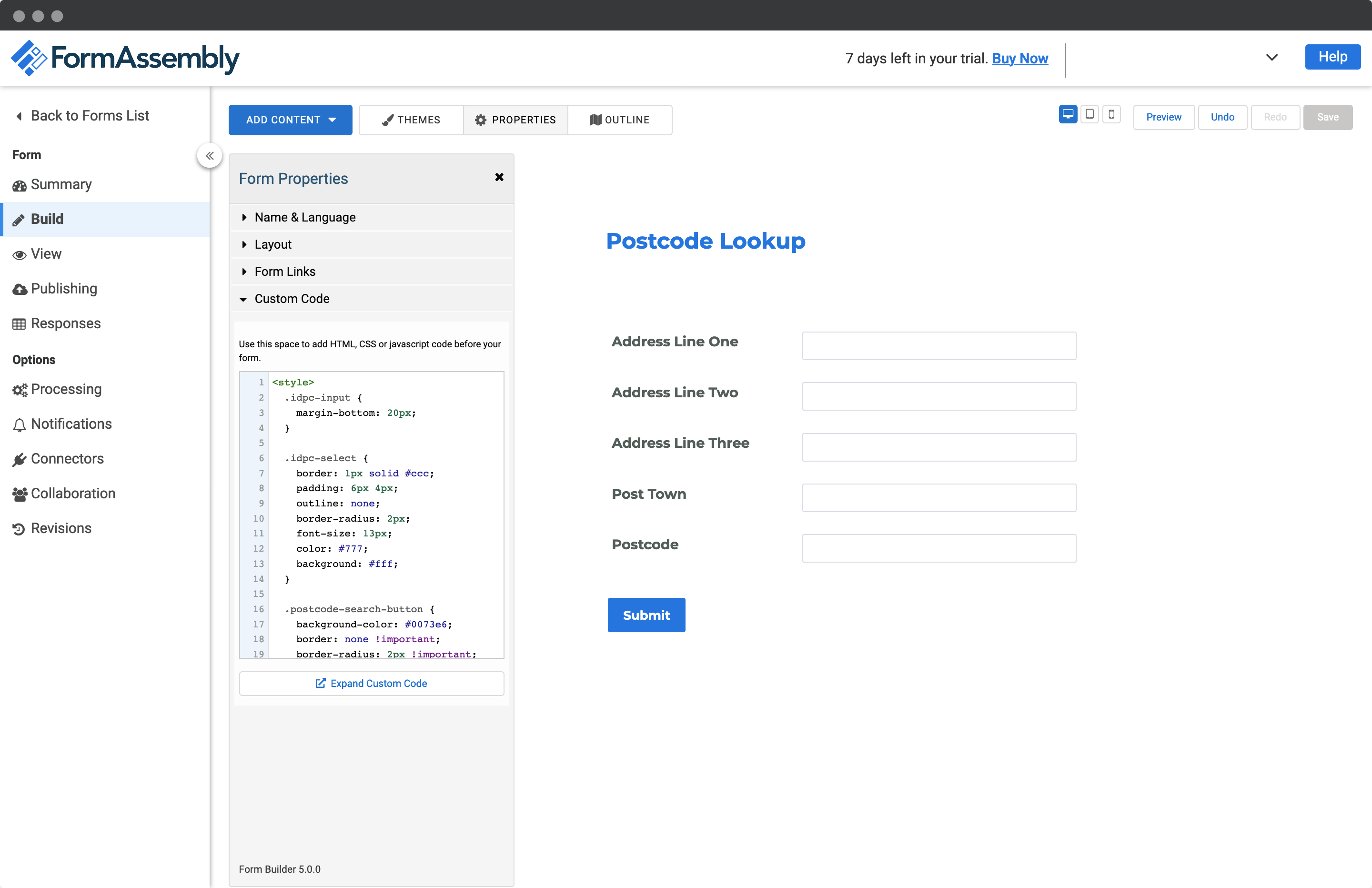
You may also style the elements in your form. To do so, in the 'Custom Code' section on the 'Form Properties' panel, please add a `style tag`. This should be above the script tags added to initialise the plugin. The `button`, `select` and `input` elements can be targeted by the `buttonClass`, `selectClass` and `inputClass` values.
![Style your Postcode Lookup elements-screenshot](https://img.ideal-postcodes.co.uk/formassembly-postcode-lookup-styling-screenshot.png)

## Configuration[​](#configuration "Direct link to Configuration")

See our [Address Finder Plugin Documentation](/docs/address-finder.md) if you wish to customise Address Finder.

See our [Postcode Lookup Plugin Documentation](/docs/postcode-lookup.md) if you wish to customise Postcode Lookup.

info

Still need help? Contact our support team via live chat on our website or email <support@ideal-postcodes.co.uk>.
