# 
Integrate Address Validation with the WordPress Divi Page Builder.
## Features[](#features "Direct link to Features")
* Bind address autocompletion to your address fields
* Add one or more postcode lookup fields
## Screenshots[](#screenshots "Direct link to Screenshots")
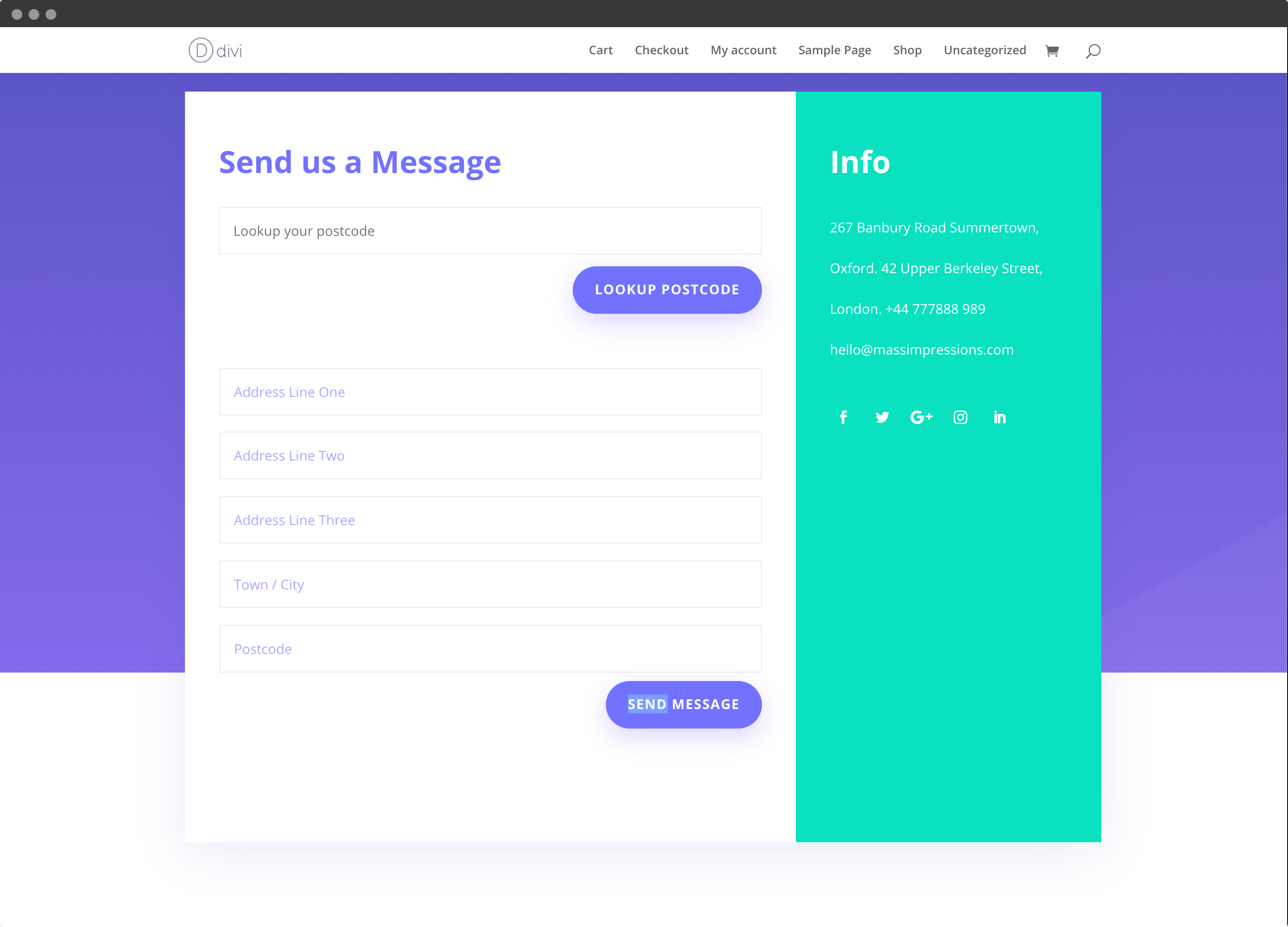
### Postcode Lookup[](#postcode-lookup "Direct link to Postcode Lookup")
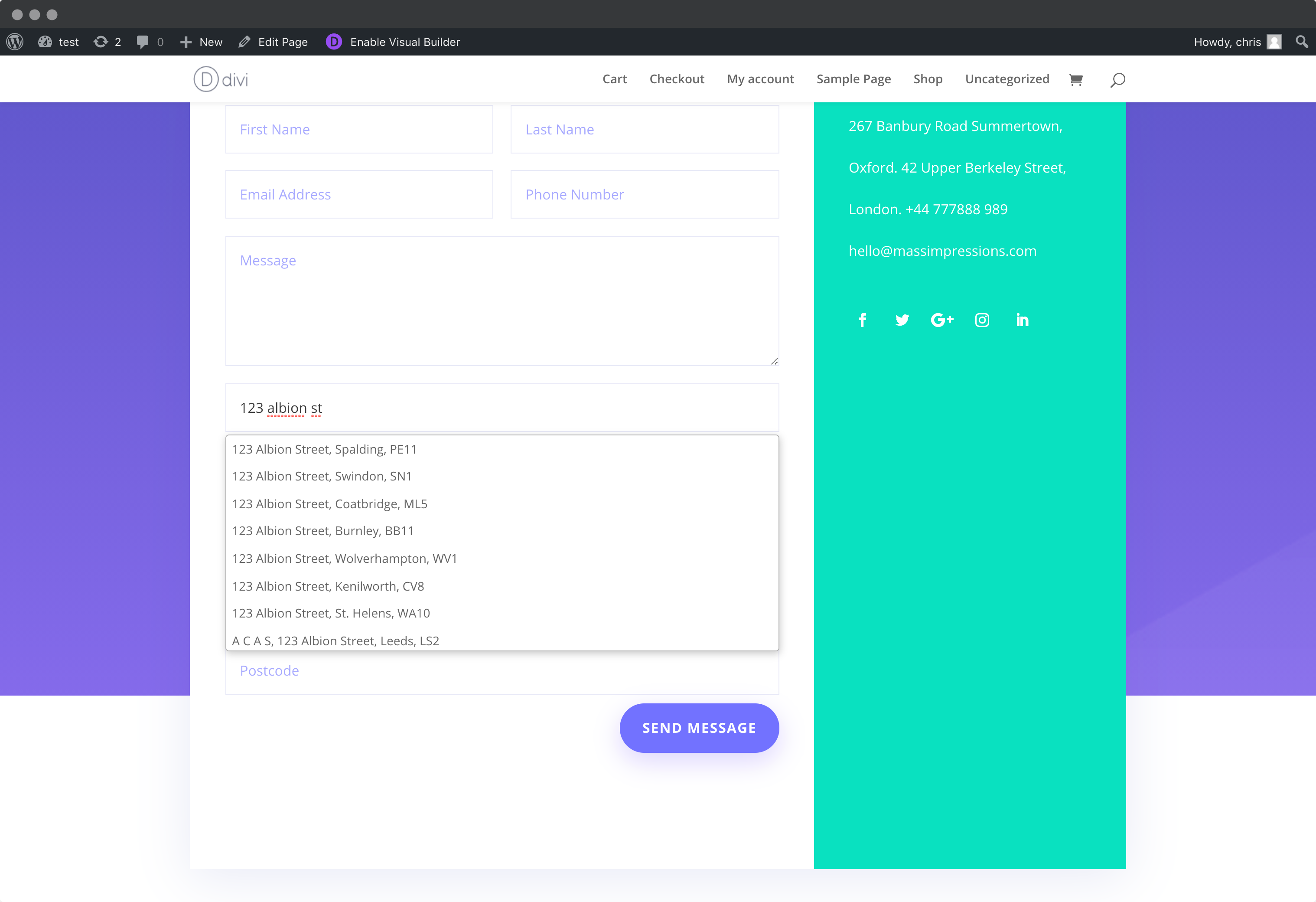
### Address Finder[](#address-finder "Direct link to Address Finder")
## Installation[](#installation "Direct link to Installation")
Below are the instructions to add Postcode Lookup or Address Finder.
### Create Address Inputs[](#create-address-inputs "Direct link to Create Address Inputs")
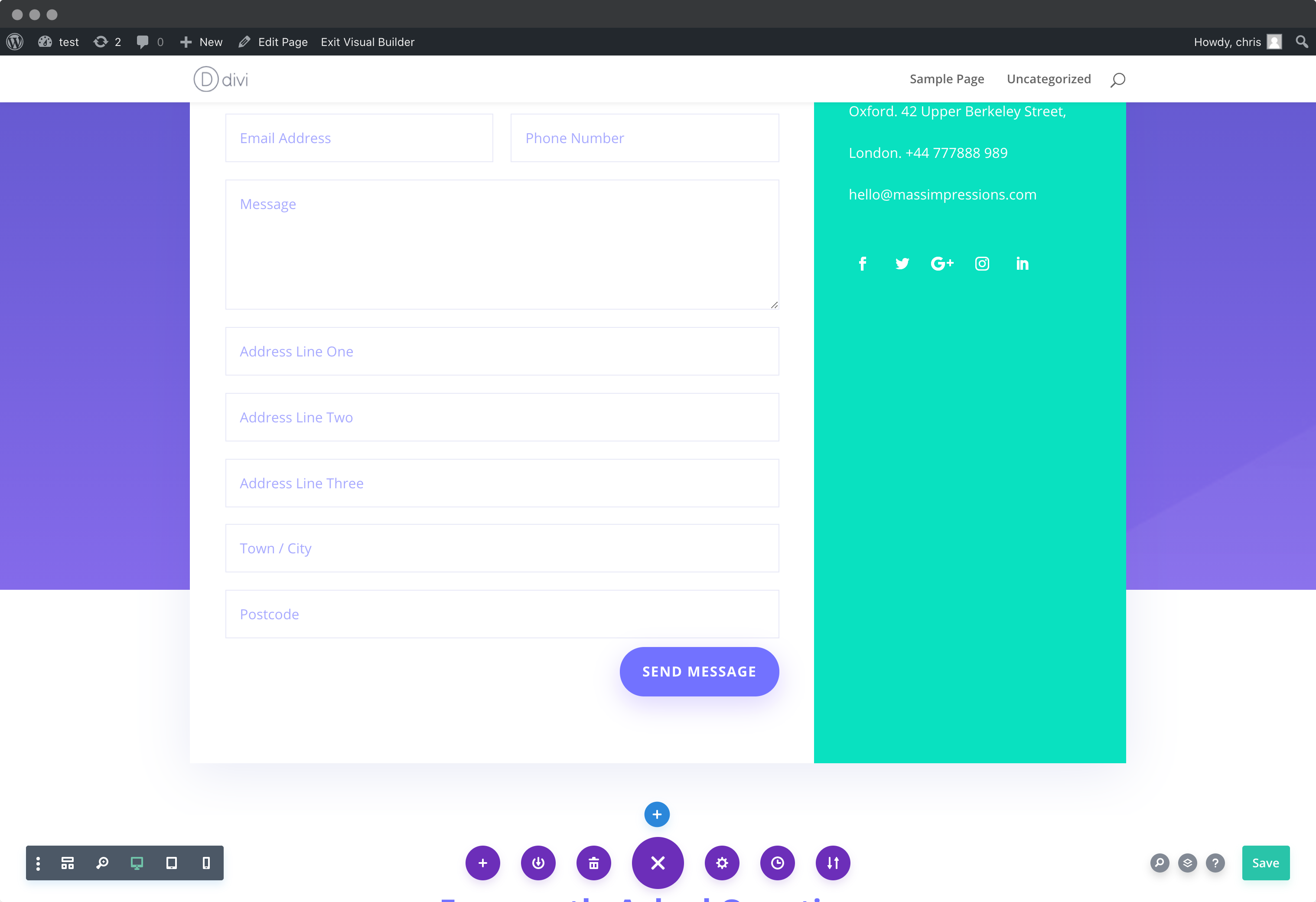
Add address input fields to your form. These should be created using `Single Line Text` fields found under `Standard Fields`.
A basic address form to capture a correct UK address requires the following fields:
* Address line one
* Address line two
* Address line three
* Post town
* Postcode
You can optionally include additional fields, which are documented in our [PAF documentation](/docs/api/addresses.md).
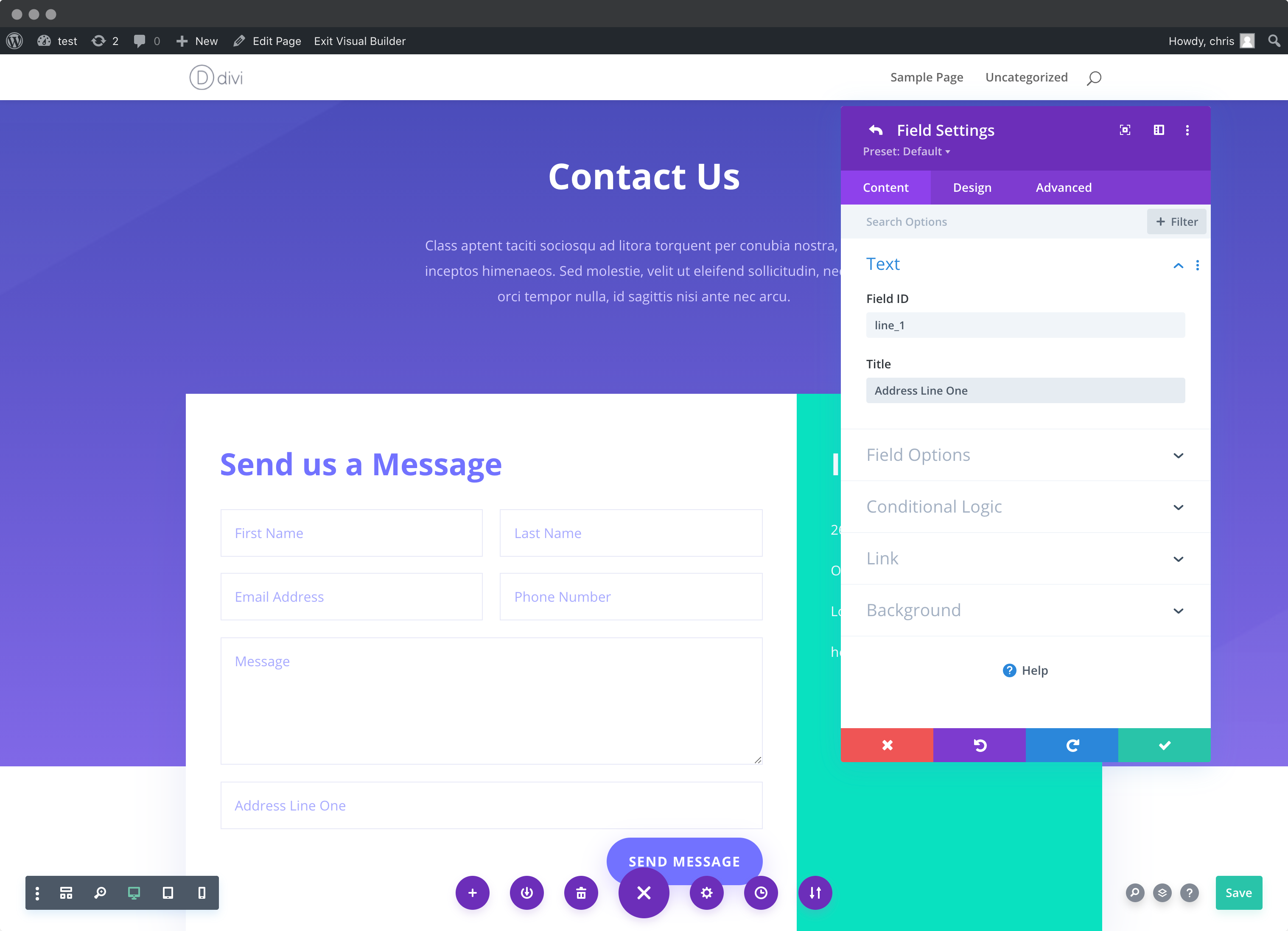
**Note the** `Field ID` number for each address field created. You will need this later to configure the Postcode Lookup Plugin and/or Autocomplete Plugin.
### Add Address Finder[](#add-address-finder "Direct link to Add Address Finder")
#### Install Plugin[](#install-plugin "Direct link to Install Plugin")
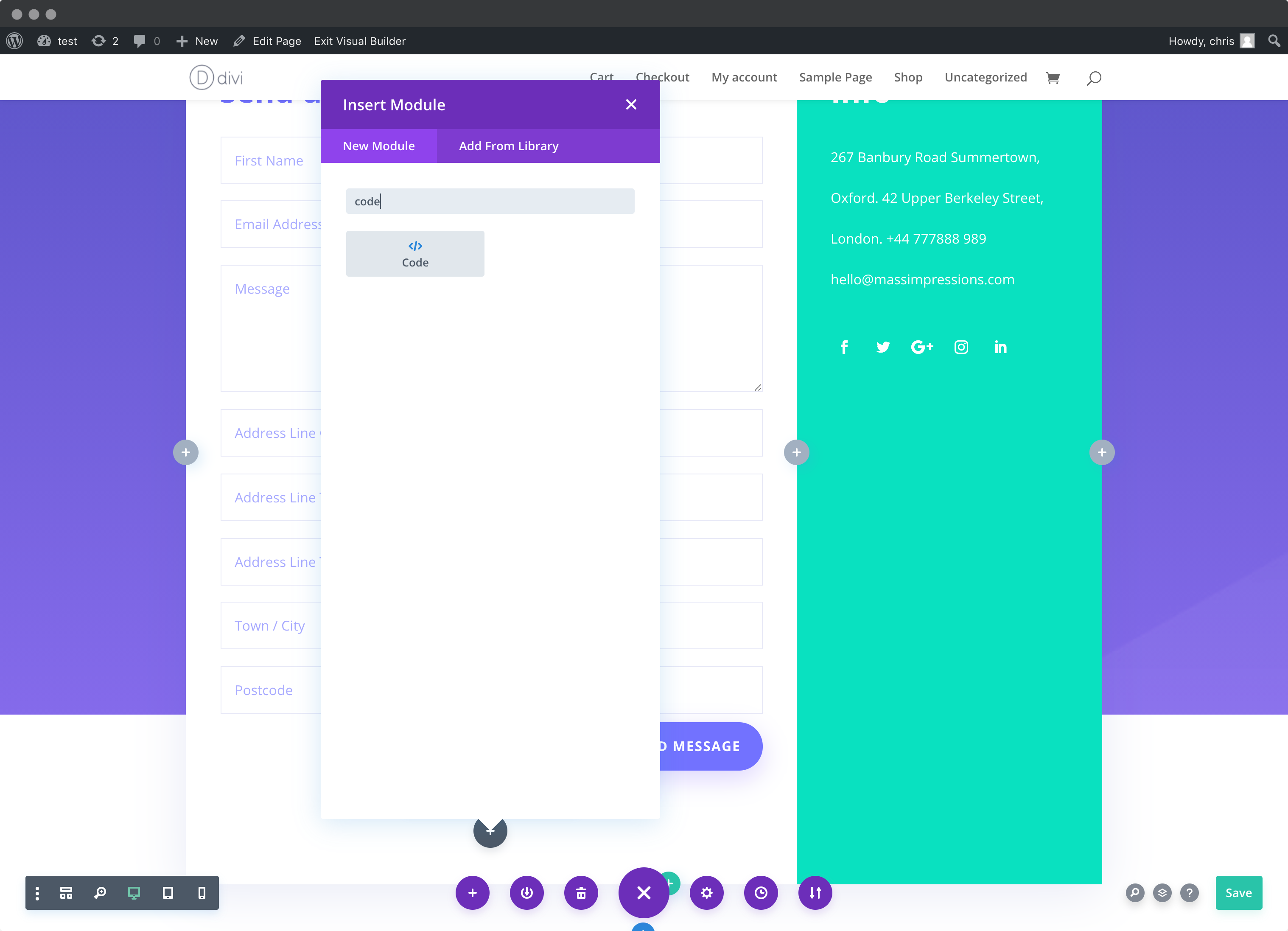
Create a code block beneath your address form. Preferably, at the bottom point of your page. In the `Code` box add the Autocomplete Plugin script tags.
```
```
#### Initialise Autocomplete[](#initialise-autocomplete "Direct link to Initialise Autocomplete")
Now, in the same `Code` box as above, append the Autocomplete initialisation code.
```
```
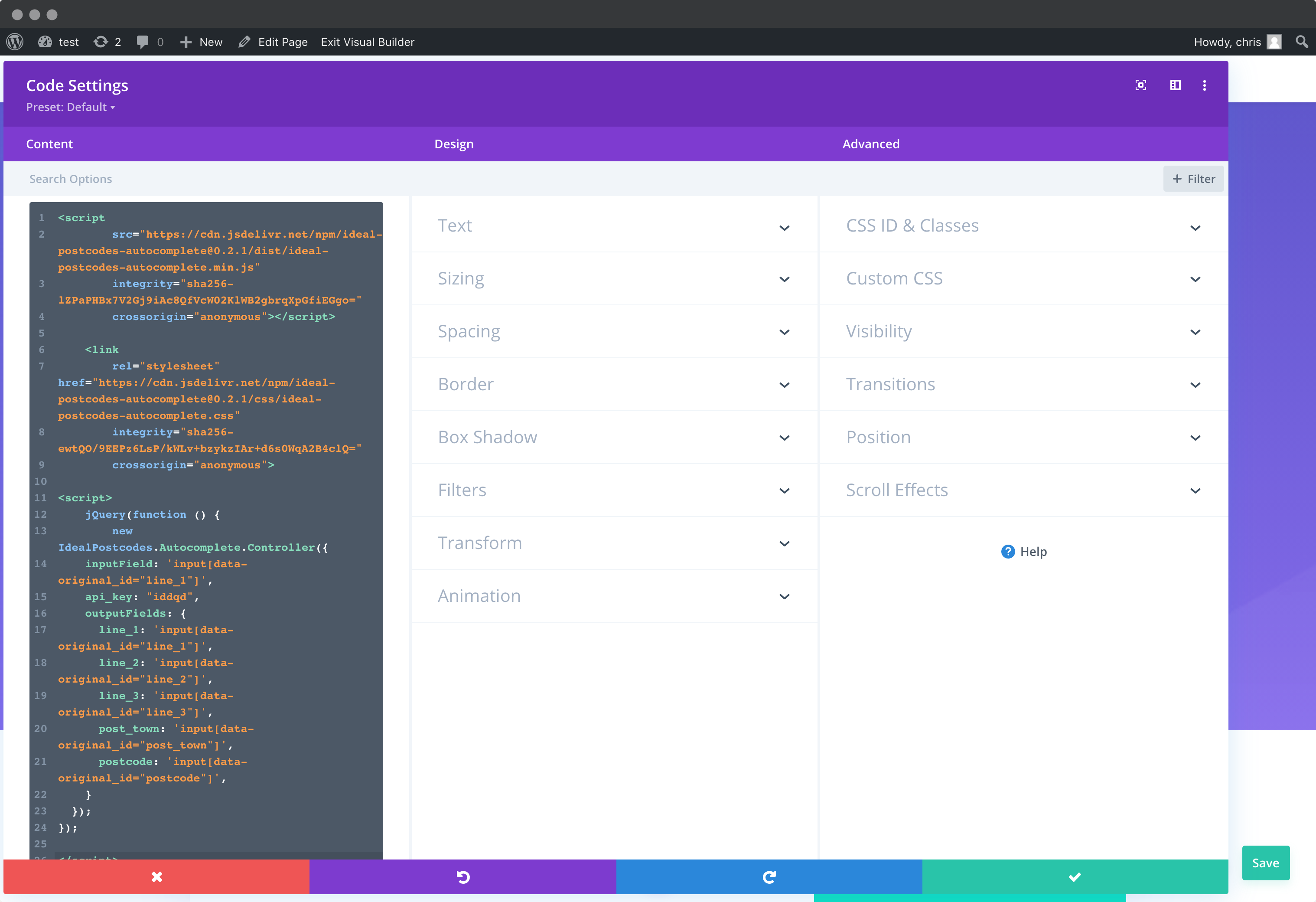
You can optionally override CSS styles in the same `HTML` field:
```
```
caution
Take special care to:
1. Insert your API Key in the `apiKey` field
2. Update the input field names of your target fields. If your Address Line One `Field ID` is `line_1`, this line should be replaced with `'input[data-original_id="line_1']'`. Do this for all the address fields you wish to include
3. Ensure `inputField` points to the same field as Address line One
If you wish to add an additional field, include the parameter name [from our documentation](/docs/api/addresses.md). For instance, adding a county field with Field ID `county` will look like:
```
outputFields: {
line_1: 'input[data-original_id="line_1"]',
line_2: 'input[data-original_id="line_2"]',
line_3: 'input[data-original_id="line_3"]',
post_town: 'input[data-original_id="post_town"]',
county: 'input[data-original_id="county"]',
postcode: 'input[data-original_id="postcode"]'
}
```
### Add Postcode Lookup[](#add-postcode-lookup "Direct link to Add Postcode Lookup")
#### Add Postcode Lookup HTML elements[](#add-postcode-lookup-html-elements "Direct link to Add Postcode Lookup HTML elements")
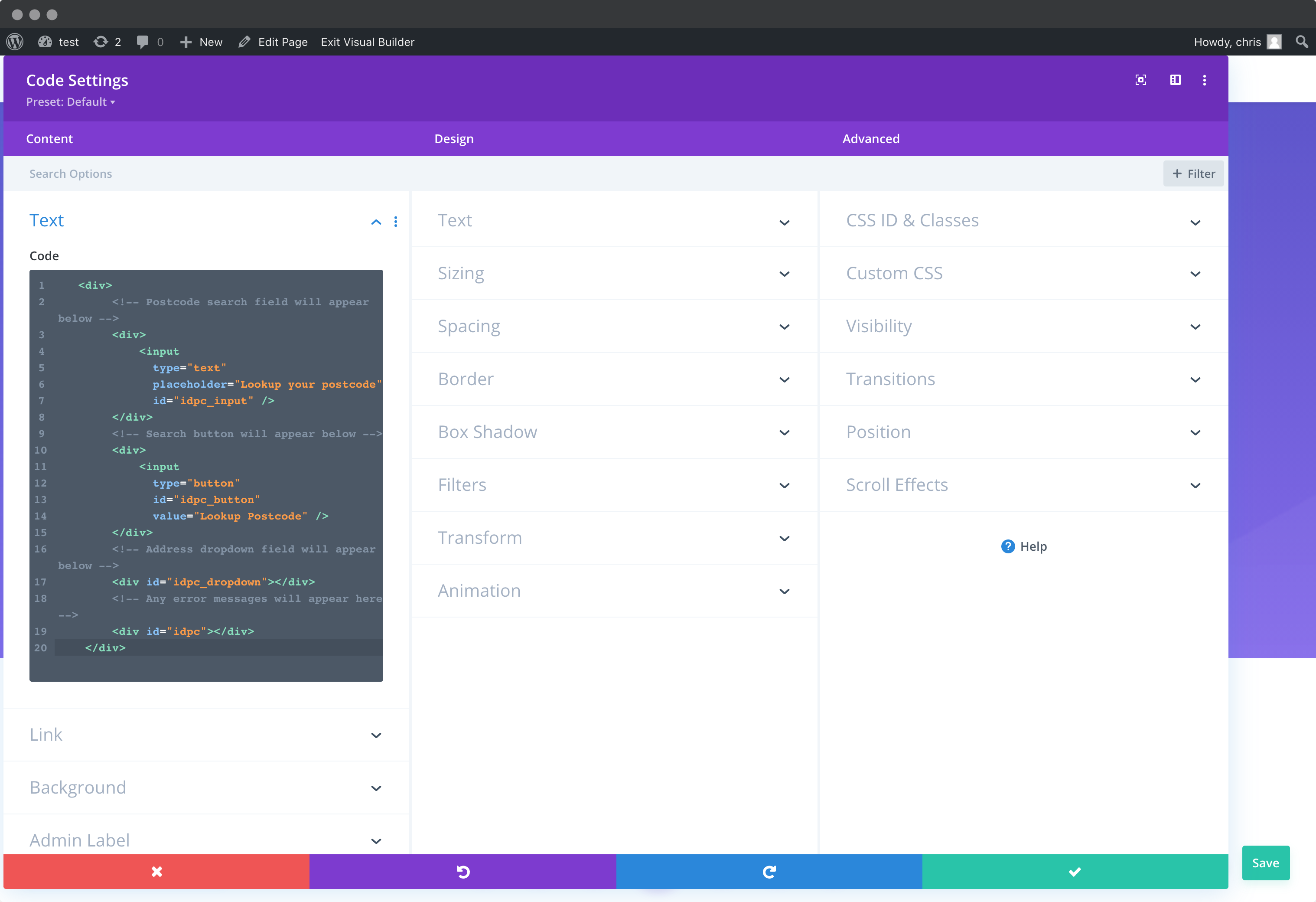
Create a new `Code` box above your form. This will provision the postcode search field, search button and address dropdown for the postcode lookup plugin.
```
```
You will also need to append styles to suit your theme to the HTML above. The following snippet styles the postcode lookup fields according to a custom theme.
```
```
#### Install Plugin[](#install-plugin-1 "Direct link to Install Plugin")
Add a `Code` box at the top of your form and add the Postcode Lookup plugin script tag.
```
```
In the same Code box, add the Postcode Lookup initialisation script.
```
```
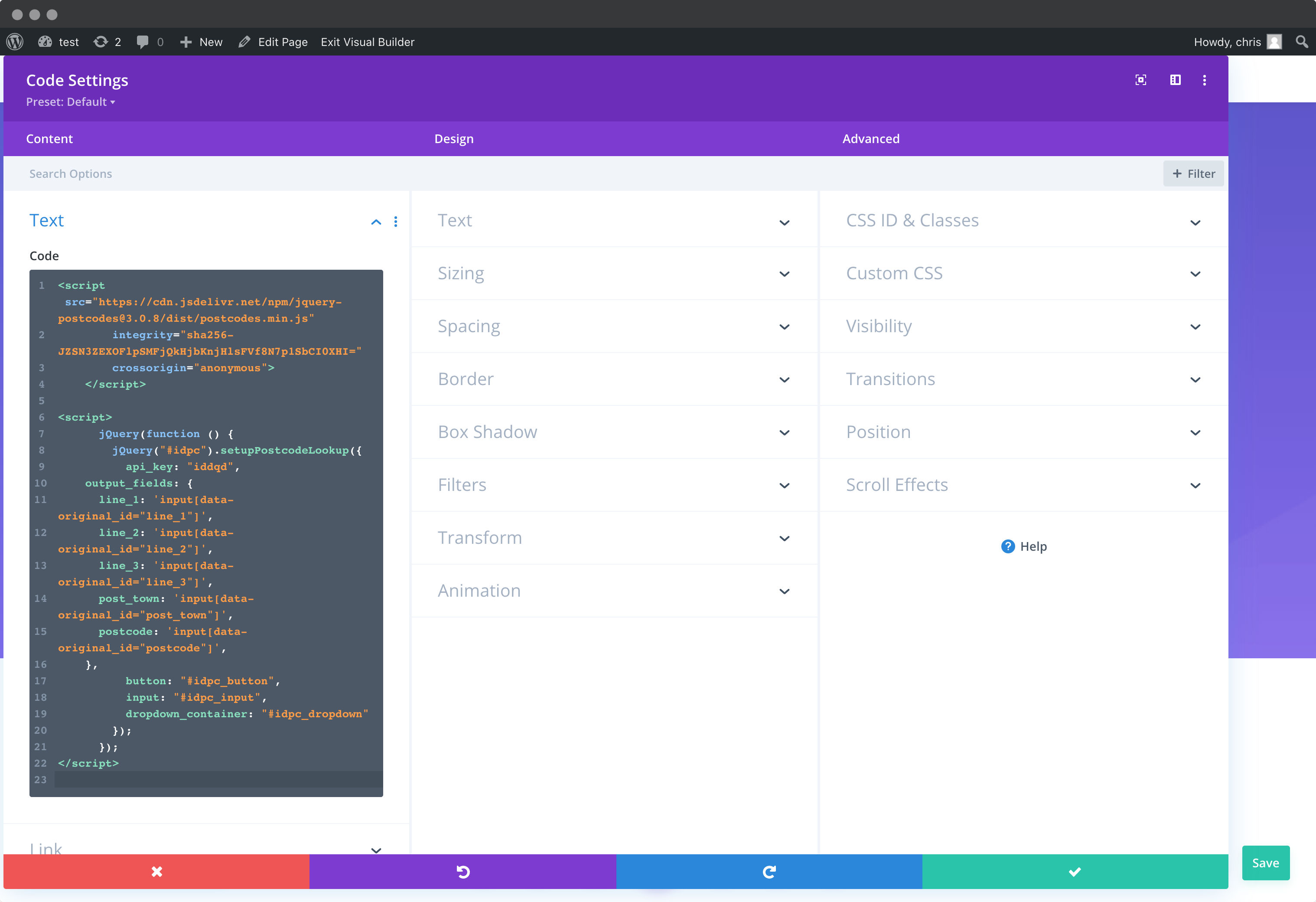
Take special care to:
1. Insert your API Key in the `apiKey` field
2. Update the input field names of your target fields. If your Address Line One `Field ID` is `line_1`, this line should be replaced with `'input[data-original_id="line_1"]'`. Do this for all the address fields you wish to include
3. Ensure `button`, `input` and `selectClass` matches the IDs of the lookup button, lookup field and address dropdown container in the fields created in Step 2
If you wish to add an additional field, include the parameter name [from our documentation](/docs/api/addresses.md). For instance, adding a county field with Field ID `county` will look like:
```
outputFields: {
line_1: 'input[data-original_id="line_1"]',
line_2: 'input[data-original_id="line_2"]',
line_3: 'input[data-original_id="line_3"]',
post_town: 'input[data-original_id="post_town"]',
county: 'input[data-original_id="county"]',
postcode: 'input[data-original_id="postcode"]'
}
```
## Configuration[](#configuration "Direct link to Configuration")
See our [Address Finder Plugin Documentation](/docs/address-finder.md) if you wish to customise Address Finder.
See our [Postcode Lookup Plugin Documentation](/docs/postcode-lookup.md) if you wish to customise Postcode Lookup.
info
Still need help? Contact our support team via live chat on our website or email .